
Getting started
NurtureSite vs site admin
When to use your NurtureSite account and when to use your site admin.
NurtureSite gives you two places to manage your business online. They work together but serve different purposes.
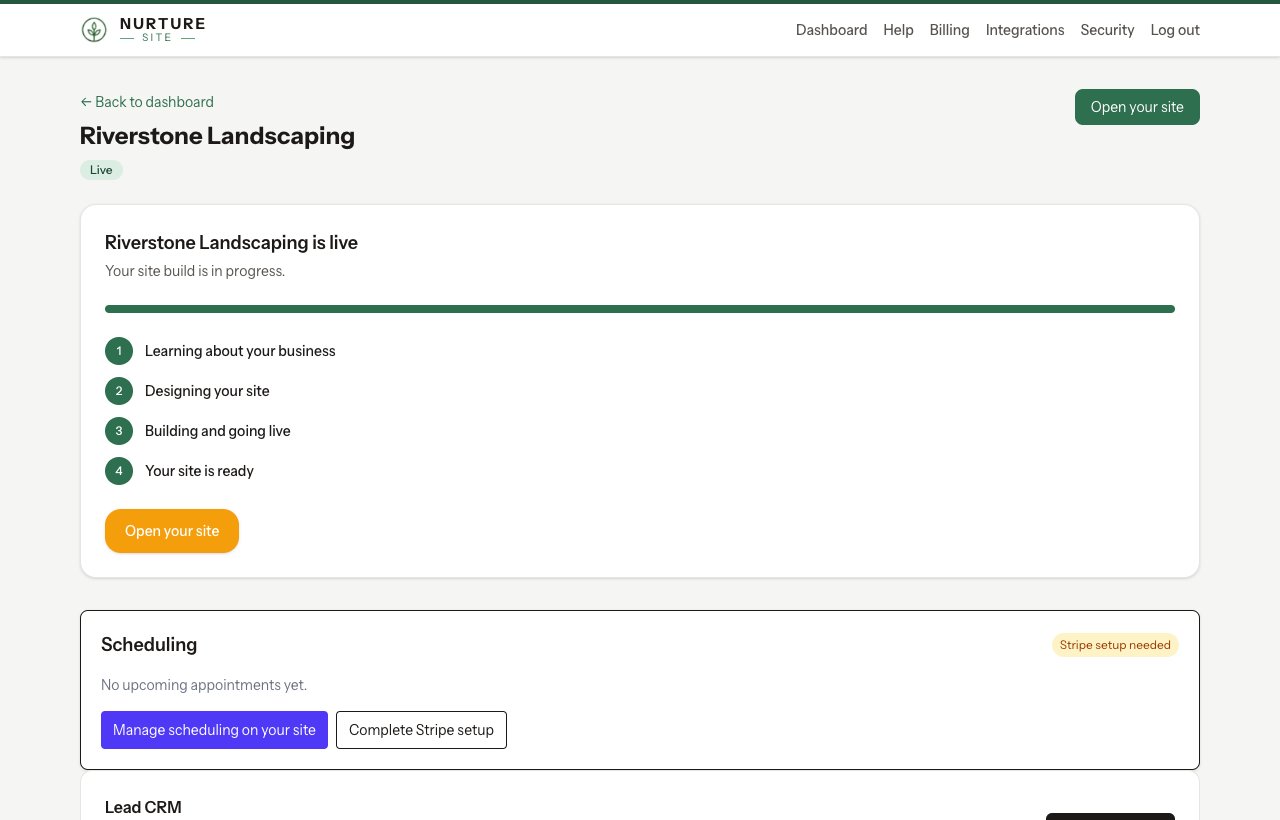
NurtureSite account (nurturesite.com)
Use your NurtureSite account for portfolio and platform tasks:
| Task | Where |
|---|---|
| View all sites and trial status | Dashboard |
| Portfolio analytics and recent leads | Dashboard |
| Per-site analytics (full reports) | Site → Analytics |
| Billing and subscription | Billing |
| Custom domain (DNS instructions) | Site detail page |
| Brand refresh / theme rollback | Site detail page |
| Upcoming appointments (glance) | Site detail page |
| Stripe Connect for deposits and invoices | Site detail page |
| Website logins for the people you serve | Site detail page (noun logins checkbox) |
| Support verification PIN | Security |
Site admin (yoursite.com/admin)
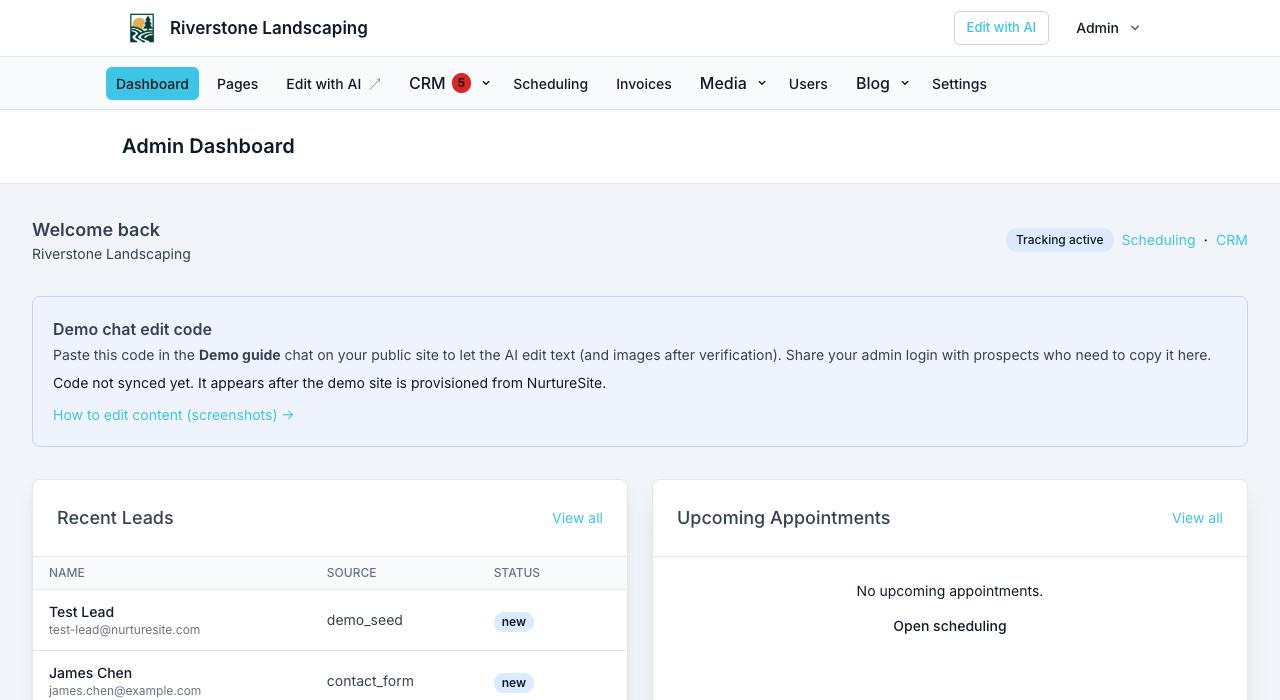
Use site admin for day-to-day site operations:
| Task | Where |
|---|---|
| Edit pages and blocks | Pages |
| Blog posts and media | Blog, Media |
| Scheduling setup and appointments | Scheduling |
| Site CRM (Customers, Patients, Households, Students, Leads) | CRM |
| Website logins | CRM → {noun} logins |
| Documents, waivers, and e-sign | CRM → Documents |
| Site settings (colors, nav, SEO) | Settings |
| Site subscription checkout | Billing (on site) |
Opening site admin from NurtureSite
On your site detail page, click Open site admin. NurtureSite signs you in automatically (SSO handoff).
If handoff is unavailable, use Show credentials for a one-time email and password (break-glass access).
What NurtureSite does not replace
- Full scheduling setup lives in site admin → Scheduling. NurtureSite shows upcoming bookings and Stripe status only.
- Page and block editing is only in site admin.
- Factory CRM (internal NurtureSite sales tools) is separate from your site’s CRM.
See Site admin basics to learn the site admin navigation.
Related articles
- Getting startedRegister, complete onboarding, and launch your first site.
- Site admin basicsLogin, roles, navigation, and opening admin from NurtureSite.
- Website logins for the people you serveLet patients, guests, households, and other records sign in on your site for appointments, invoices, subscriptions, and preferences.