
Site content & admin
Pages and blocks
Edit pages, add blocks, and use the AI site editor.
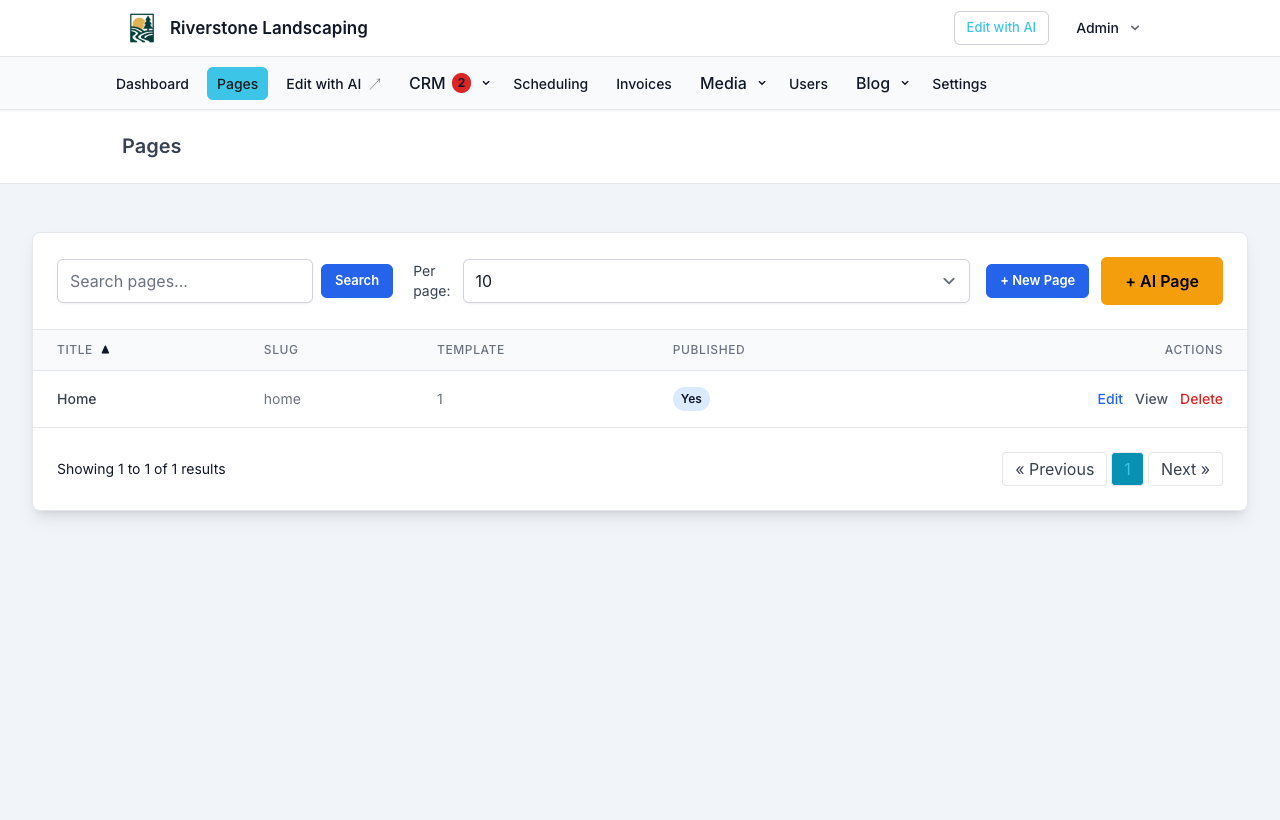
Edit your website structure in site admin → Pages.
Page list
- Search, sort, and paginate pages
- Create, edit, delete pages
- Set slug, parent, template, publish state, and SEO fields
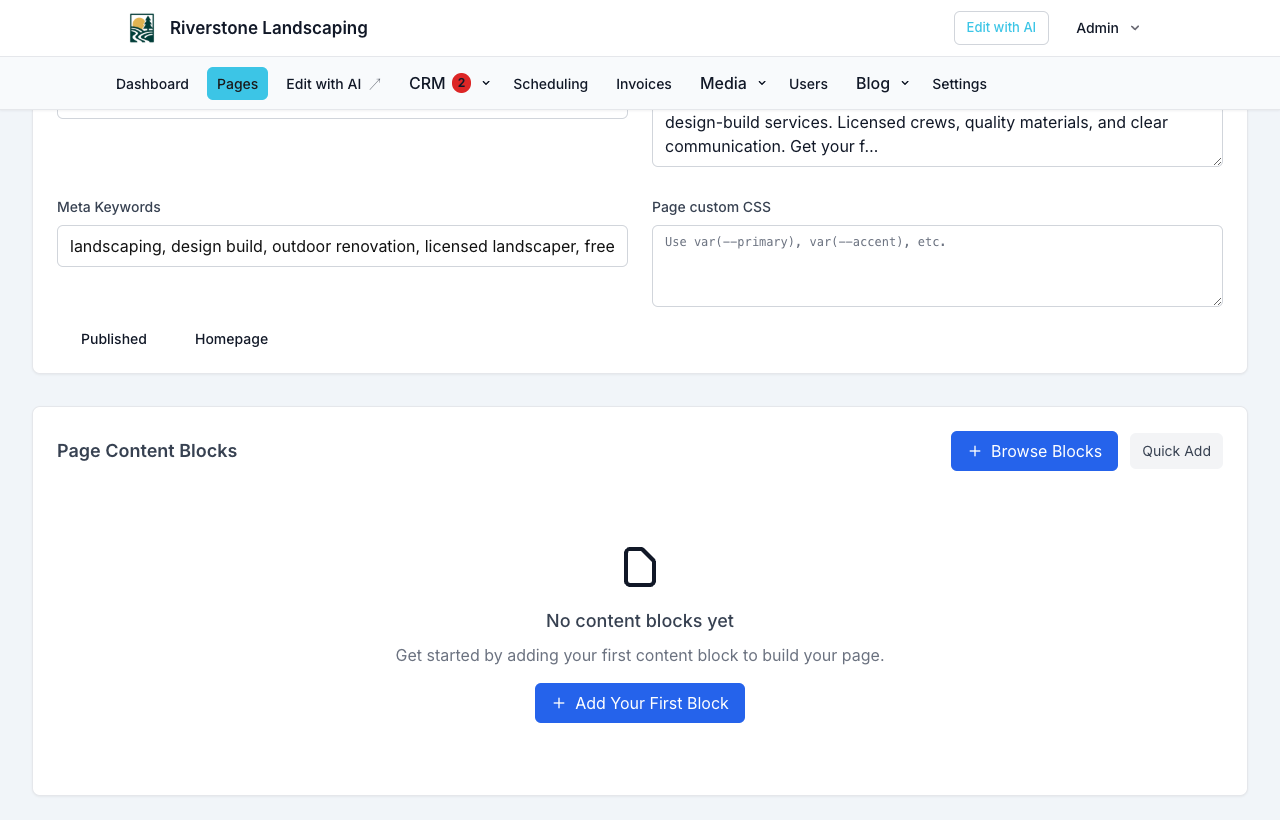
Block editor
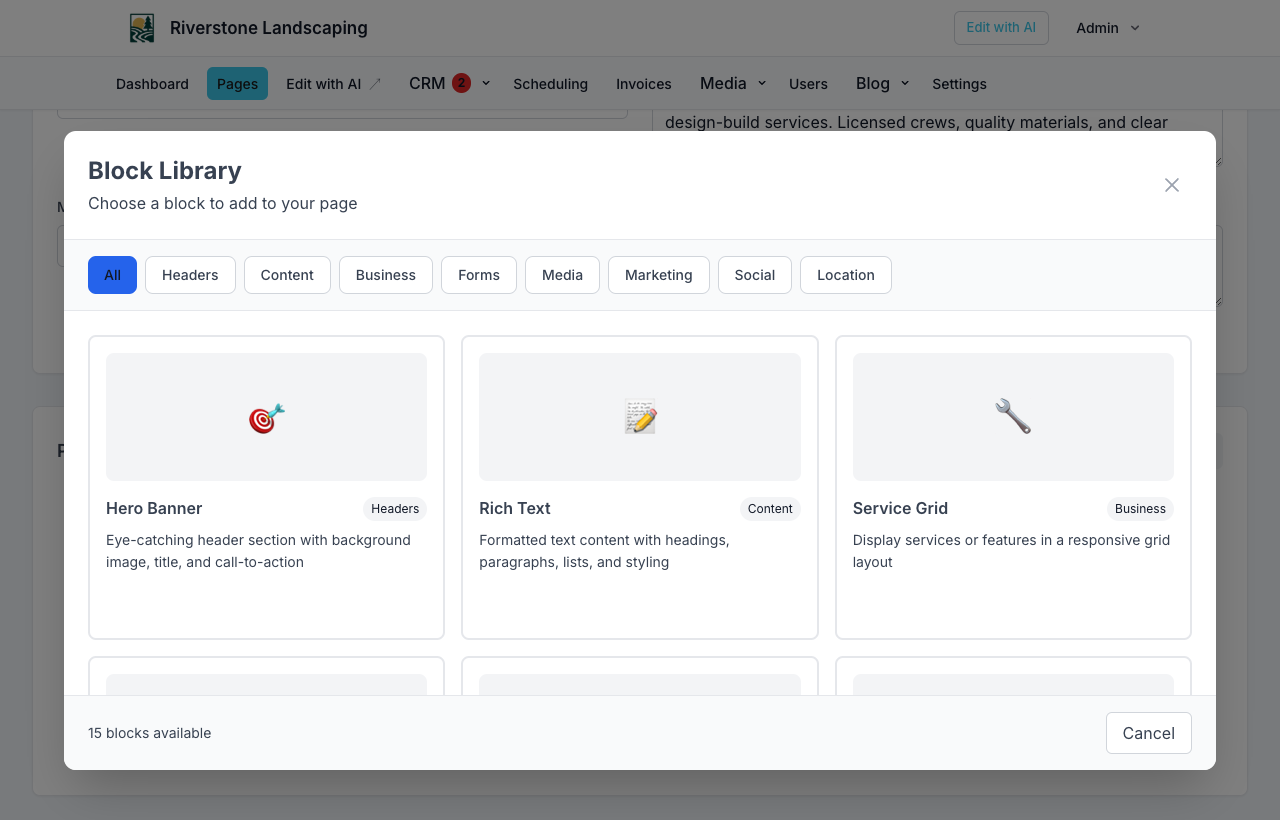
Each page is built from blocks. Common blocks include:
- Hero banner, rich text, service grid, features, gallery
- Contact form, quote form, CTA, FAQ, testimonials
- Booking scheduler — Online appointment widget
Add blocks with Browse Blocks, reorder, update content, and remove blocks from the page editor. Use the Presets tab for starter groups (Hero + CTA, Features + CTA, two-column image + text). New pages start empty until you add blocks.
On wide screens, toggle Live preview in the page editor header to see the page update beside the block forms as you edit content and styles.
See the full catalog with live examples: Block types.
Block styles
Each block has a style panel:
- Layout style — curated variants (where available)
- Motion preset — inherit site default, or minimal / standard / bold / none
- Section padding and section background — guided spacing and soft bands
- Advanced CSS — optional scoped CSS using design tokens
Site-wide brand colors and fonts live under Settings — see Brand and theme. AI provisioning applies matching variants and motion when your site is first built.
Booking scheduler block
Place the booking_scheduler block on any page (e.g. /book-appointment):
- Edit the page in site admin.
- Add block → Booking scheduler.
- Save and publish.
Visitors use the multi-step flow: service or class → staff (when your booking mode requires it) → date/time (spots left on group) → number of people → details → optional deposit. Configure Who customers book with under Scheduling → Staff. See Who customers book with, Group and class bookings, and how it looks on a live page in Block types → Booking scheduler.
Configure services and hours under Scheduling first. See Online booking setup.
AI site editor
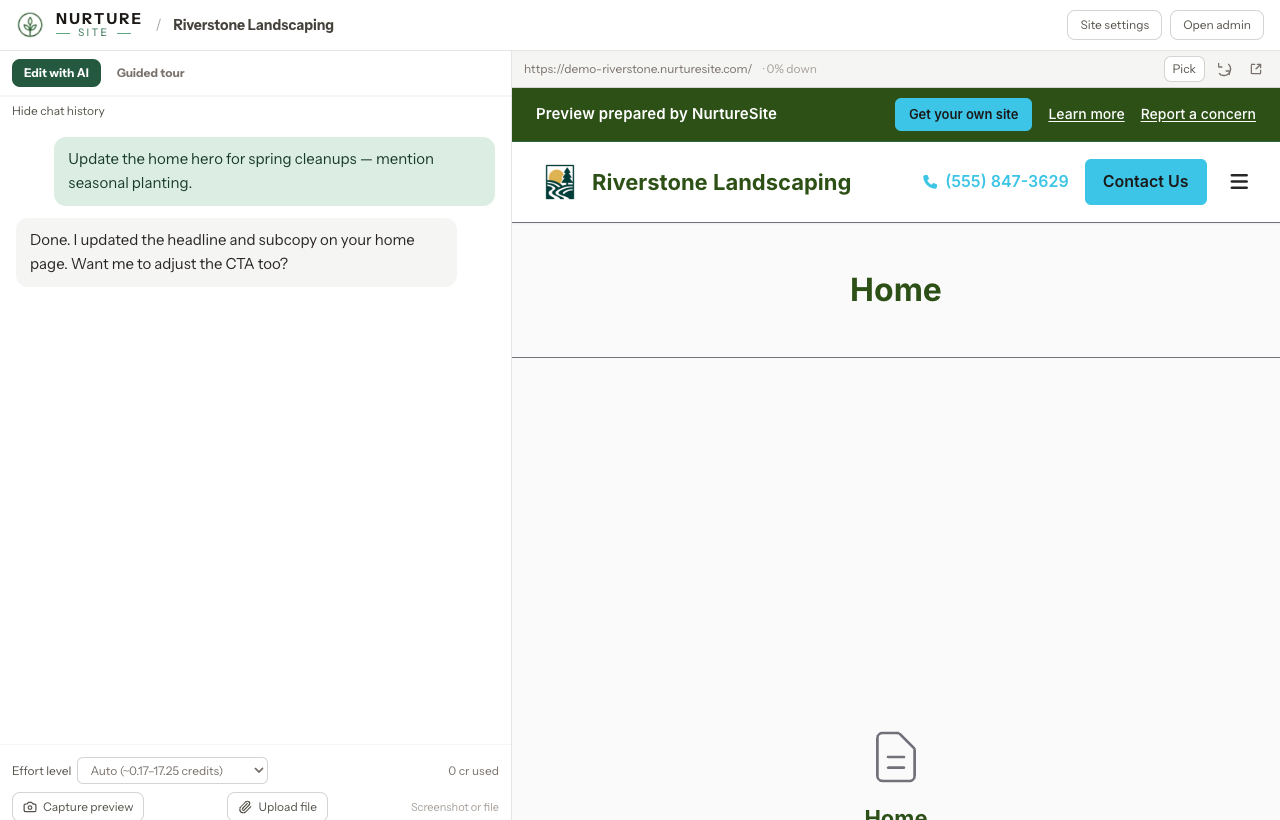
For everyday copy, layout, and style tweaks, use Edit with AI instead of editing blocks by hand. Chat describes the change; a live preview of your site updates beside the conversation. The assistant can change per-block variants, motion, and padding—not only text—and can also update site-wide brand settings when asked.
Open it from either place:
- NurtureSite → your site page → Edit with AI
- Site admin top nav → Edit with AI (opens NurtureSite)
Then:
- Stay on Edit with AI (or switch from Guided tour).
- Optionally click Pick and select elements in the preview so the AI knows what to change. Use style chips under the composer for quick motion/padding suggestions.
- Type what you want — for example, “Update the home hero for spring cleanups”, “Use the light-cards layout on features”, or “Swap the contact photo.”
- Review the live preview. Use Undo if you need to reverse the last AI edit in this chat.
- Attach a screenshot or image when it helps (camera / paperclip in the composer).
Use the block editor when you need precise control — adding or reordering blocks, SEO fields, presets, or placing the booking scheduler. Use the AI site editor for faster wording, image, section, and style updates.
Preview and publish
Use Preview / Live preview before publishing major changes. Unpublished pages are not visible to the public.
Contact vs booking
Use contact form blocks for open-ended messages. Use booking scheduler for time-specific appointments. See Leads vs bookings.
Related articles
- Block typesWhat each page block looks like and when to use it.
- Editing your demo site contentDemo chat verification code, text edits via chat, and manual image updates.
- Online booking setupServices, staff, hours, timezone, payments, and the booking block.
- Blog and mediaPosts, categories, AI blog, and media library.