
Your account
Brand and theme
Preview moods, refresh your brand, and rollback changes.
NurtureSite can refresh your site’s visual brand from your NurtureSite site page (when brand data is available) or from site admin → Settings.
Site vs per-block styling
| Layer | Where | What it controls |
|---|---|---|
| Site brand | Settings / Refresh my brand | Colors, fonts, site-wide motion |
| Per-block style | Page editor style panel, or Edit with AI | Variant, motion preset, padding, section background, scoped CSS |
When a site is first provisioned, AI applies a style profile (variants + motion) to blocks automatically. Existing sites keep their saved settings until you edit, refresh theme (if unlocked), or ask Edit with AI to change them.
Preview visual moods
On the NurtureSite site page, preview how different visual moods look before applying them. Moods adjust typography and styling direction while keeping your content.
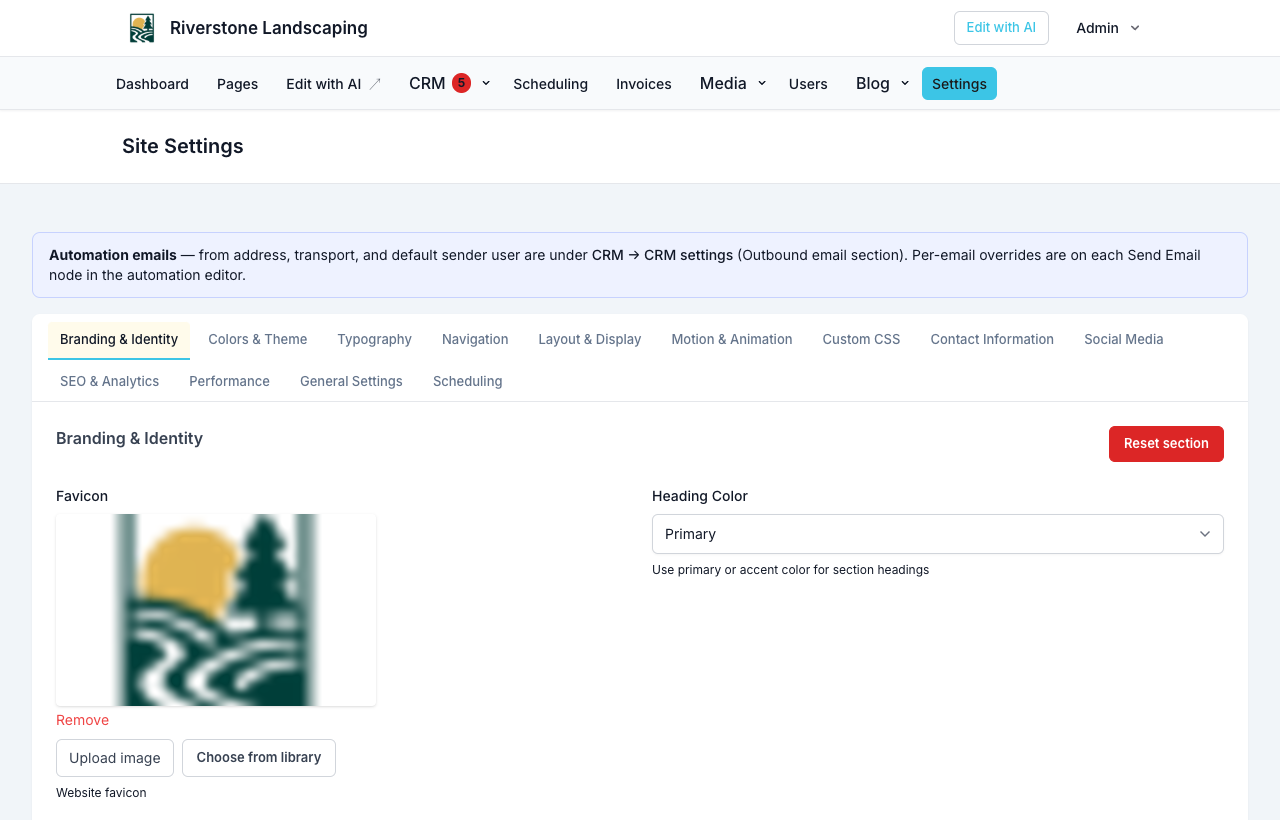
For exact colors and fonts, open site admin → Settings:
Refresh my brand
Refresh my brand re-runs brand analysis and updates theme variables on your deployed site. Use this after a rebrand or when colors feel outdated. It respects brand lock / styling lock in site admin unless you explicitly override.
A refresh changes site-wide settings only (colors, fonts and motion). It does not restyle individual sections, so section styles you set in the page editor stay as they are. If you chose your brand colors yourself, the refresh keeps them and restyles around them.
Restore previous theme
Restore previous theme rolls back to the last saved theme snapshot if the refresh did not match expectations.
Brand lock override
If your team locked branding in site admin → Settings, NurtureSite may show an option to override that lock for a factory-driven refresh. Site admins can re-lock branding afterward.
Site admin settings
For fine-grained control (exact hex colors, fonts, navigation, motion), use site admin → Settings. For a single section’s look, use the page block style panel or Edit with AI. See Site settings.