
Booking & payments
Managing appointments
View, cancel, invoice balances, confirmation emails, and customer manage links.
View appointments
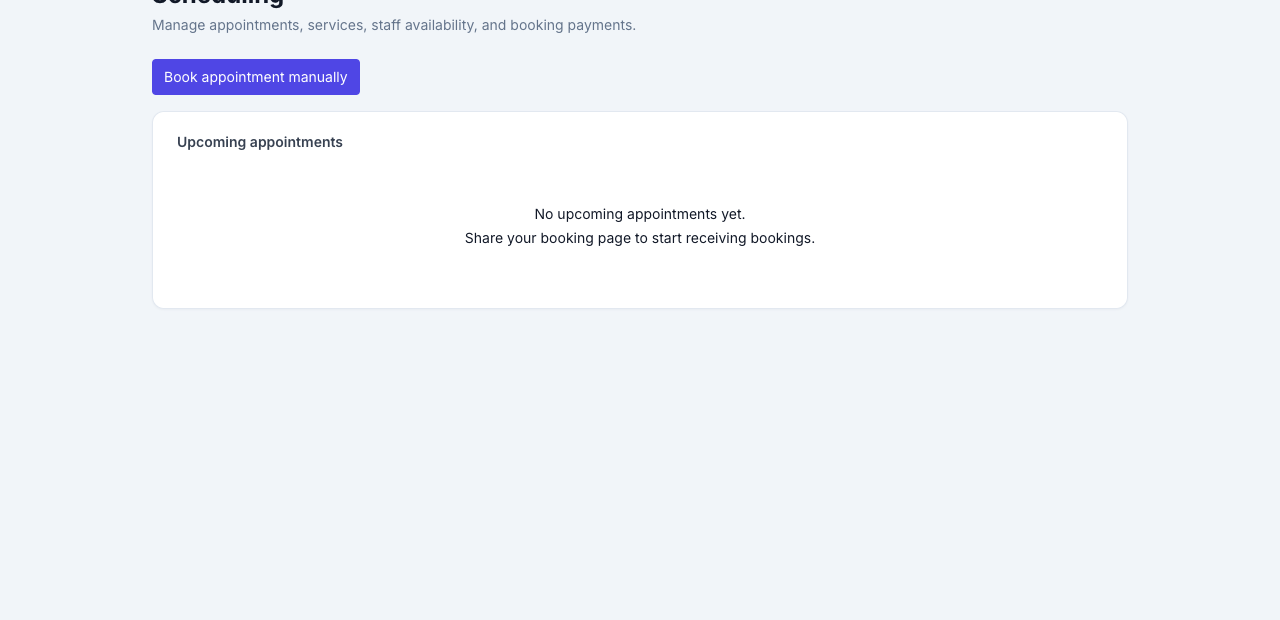
site admin → Scheduling hub lists upcoming appointments (confirmed, pending payment, held).
Open Scheduling → appointments → {id} for full detail. From the appointment page you can see price, deposits paid, and balance due, then send an invoice for the remainder when Stripe Connect is ready.
Book from the calendar with a deposit
When a service has a deposit and Stripe Connect is on, the scheduling hub Book panel includes Collect deposit by email.
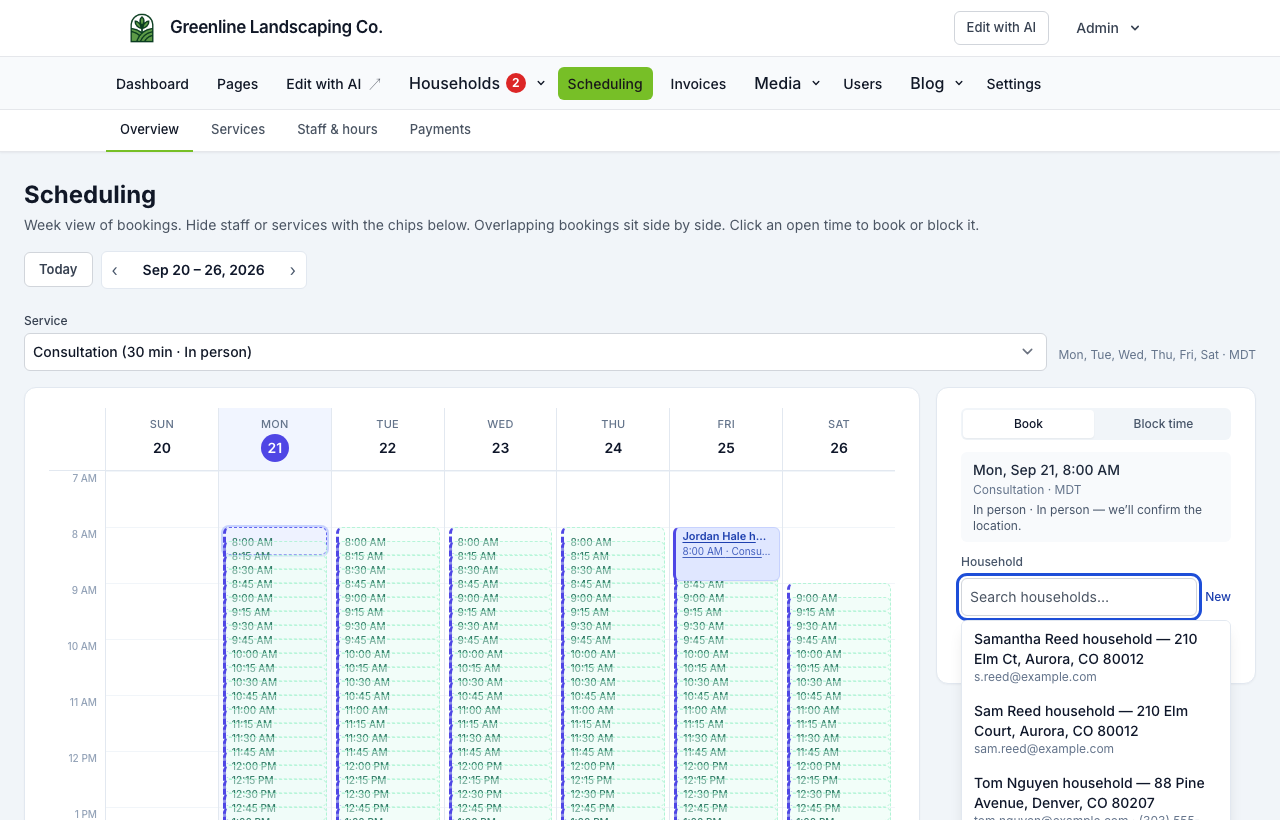
- Click a green opening on the week calendar.
- Search for an existing CRM record, or add a new customer (saved in CRM). The picker uses your noun (customers, patients, households, leads). Household / home-service sites should include a service address on the record so matching stays address-first.
- Leave Collect deposit by email checked (it is on when the service has a deposit).
- Click Send deposit email.
The time is held as awaiting deposit. The customer gets an email with a pay link (/book/deposit/{token}). After they complete Stripe Checkout, the appointment becomes confirmed.
Uncheck the box to confirm immediately without collecting a deposit (walk-ins, already paid, or trusted clients). Staff bookings that skip to confirmed can also skip required-at-book packages and send them later from the CRM record. See Forms, waivers, and e-sign.
From the appointment page you can resend the deposit email or cancel the request to free those seats (or the whole exclusive time for one-on-one). Unpaid holds expire automatically (up to 48 hours, or when the appointment starts—whichever is sooner).
When booking a group service from the hub, set Number of people (up to remaining seats). Clustered calendar blocks show occupancy (for example Yoga 5/8). See Group and class bookings.
Invoice remaining balance
When a service has a price and the customer has paid only a deposit (or nothing yet):
- Open the appointment.
- Click Invoice balance (requires customer email and Connect).
- The customer receives a pay link to complete Stripe Checkout.
List and resend invoices under site admin → Invoices. See Customer invoices. When website logins are on, they can also move or cancel a confirmed visit themselves inside your notice window. See Website logins.
Admin cancel
From appointment detail, cancel as administrator. You see the refund amount from the cancellation policy before confirm. When Stripe Connect is ready and the policy refund is at least $0.50, the refund is issued (not only recorded). Canceling then offers the next waitlisted person a timed hold if that service has a waitlist. Open envelopes on the appointment are voided.
Change service, staff, time, or party size
Appointment detail includes an amendment review: new price × party, amount already paid, amount due or refund due, and open invoices. Applying the change can send an invoice for a balance or refund (or skip / record store credit). Occupancy cannot overflow group capacity.
Customer self-service (/book/manage/{token}) stays time-only. Service and party-size changes are admin-only.
Class roster
When several bookings share the same service + staff + start:
- Email class — compose on the
session_updatetemplate; optionally include the waitlist. - Move this class — preview per attendee, then reschedule each.
- Cancel this class time — cancel each attendee with refunds and expire the waitlist.
Google/Outlook still get per-attendee events, not one shared class event.
Waitlist queue
If the service has a waitlist, appointment detail lists queued people for that slot: offer now, skip, or remove. See Booking waitlists.
Customer self-service
Customers receive a manage link in confirmation email:
/book/manage/{token}
They can view details and cancel if your policy allows.
Confirmation emails
When an appointment becomes confirmed, a confirmation email is queued (requires mail configured on the site, e.g. Mailgun). Reschedules use a dedicated appointment rescheduled template (not the confirmed template).
Edit templates under Scheduling → Email templates (including waitlist, class update, and booking-changed copy).
CRM activity
If the customer matches an existing CRM record (email/phone, or service address for households), a booking logs activity on that record. SMS consent at booking writes SMS-transactional on the contact. Phone-only bookings still create a record.
Pending payment
Deposits create a pending payment state until Checkout completes. Expired holds release automatically (scheduled job on the site).
Factory cancel
NurtureSite support may cancel via platform tools in rare cases; your site receives the update via API.
Related articles
- Online booking setupServices, staff, hours, timezone, payments, and the booking block.
- Group and class bookingsCapacity, class times, party size, and remaining spots on the widget.
- Booking waitlistsPer-service waitlists, offer-to-claim holds, class email, and booking amendments.
- Forms, waivers, and e-signPrepare waivers and intake, collect signatures on your site, and keep signed PDFs on the CRM record—required at booking, sent after, or sent from the record any time.
- Stripe Connect, deposits, and invoicesCollect appointment deposits, send customer invoices, and receive payouts.
- Customer invoicesInvoice appointment balances and CRM leads; pay links, PDFs, and automations.
- Website logins for the people you serveLet patients, guests, households, and other records sign in on your site for appointments, invoices, subscriptions, and preferences.