
Leads & CRM
Site CRM
Named records (Customers, Patients, Households, Students, Leads), pipeline, tasks, alerts, invoices, and follow-up automations in site admin.
When CRM is enabled on your site, manage records, follow-ups, and automations in site admin → CRM.
This is your site CRM on each live site — not NurtureSite’s internal sales CRM. Form submissions also appear in your NurtureSite leads inbox when sync is on.
Your list can be labeled Leads, Customers, Clients, Patients, Students, Households, Guests, Properties, or a custom name. The URL stays /admin/crm/leads. During site setup we suggest a noun after researching your business; you confirm it (Patient also offers HIPAA mode — never turned on automatically). Change it later in CRM Settings → Primary record.
How records, contacts, matching, consent, and send audience work is in CRM records. This page is day-to-day list and detail work.
Dashboard
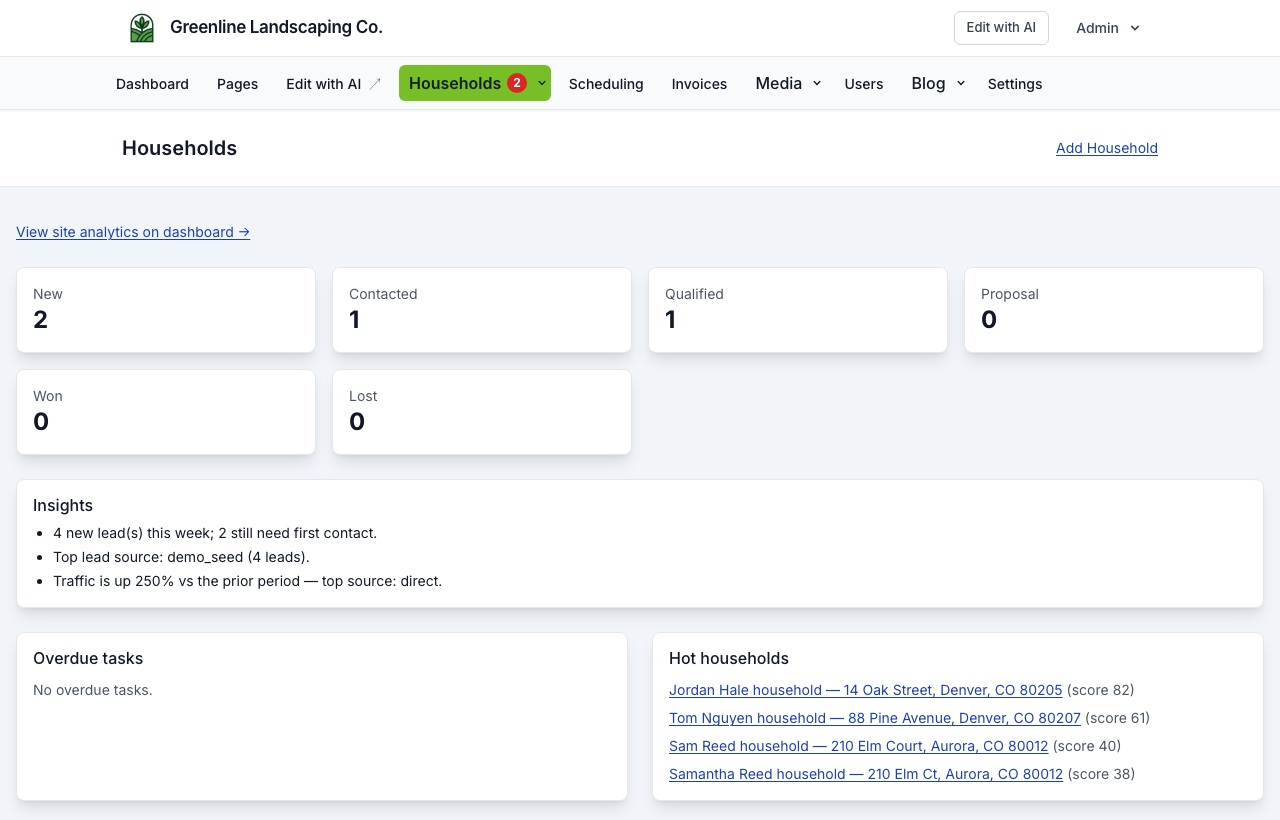
The CRM home shows pipeline counts by status, hot records, overdue tasks, recent activity, unread alerts, and a short analytics summary.
Landscaping demo: nav and tiles say Households. Dental demo: Patients.
Records
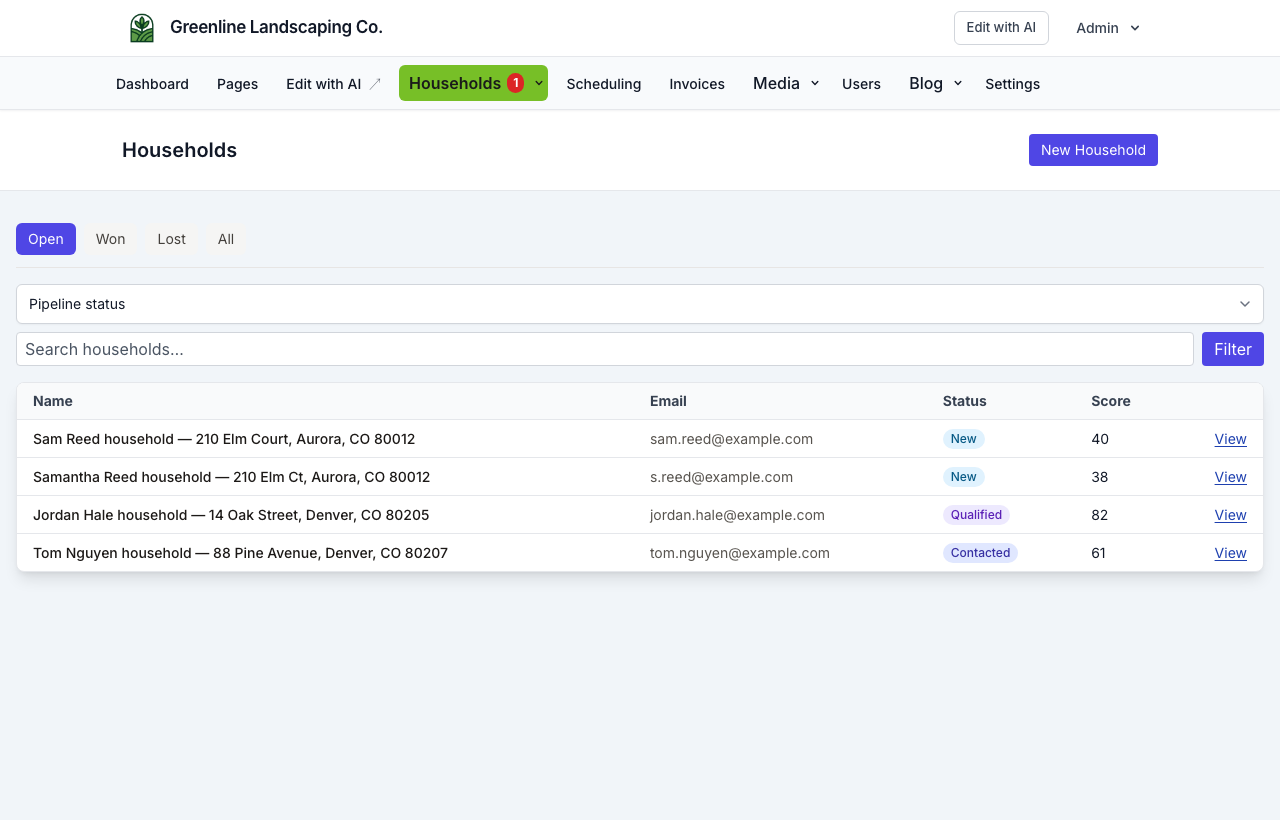
- Index — Tabs for Open (default), Won, Lost, and All; filter by status or search; Add household / Add patient / Add lead for walk-ins and phone/email inquiries
- Detail — Record details, People (contacts), bookings, payments/invoices, status, conversation, optional Notes and Documents, deal/invoice cards (toggle in CRM Settings), tasks, activity, and automations
- CRM Settings → Primary record — Catalog or custom singular/plural, record type (person / household / place), and contact roles
- CRM Settings → Lead page — Show/hide Deal, Invoice, Notes, Documents; add simple custom fields for the Details card (also usable in templates and conditions). File / Image fields upload into Documents (tagged by field key);
{{key}}is the file URL.
Every record has exactly one primary contact. Extra people (guardian, spouse, billing, tenant) are additional contacts. Greetings use the primary; email/SMS can fall back to another contact on the same record if the primary has no email or phone. See CRM records.
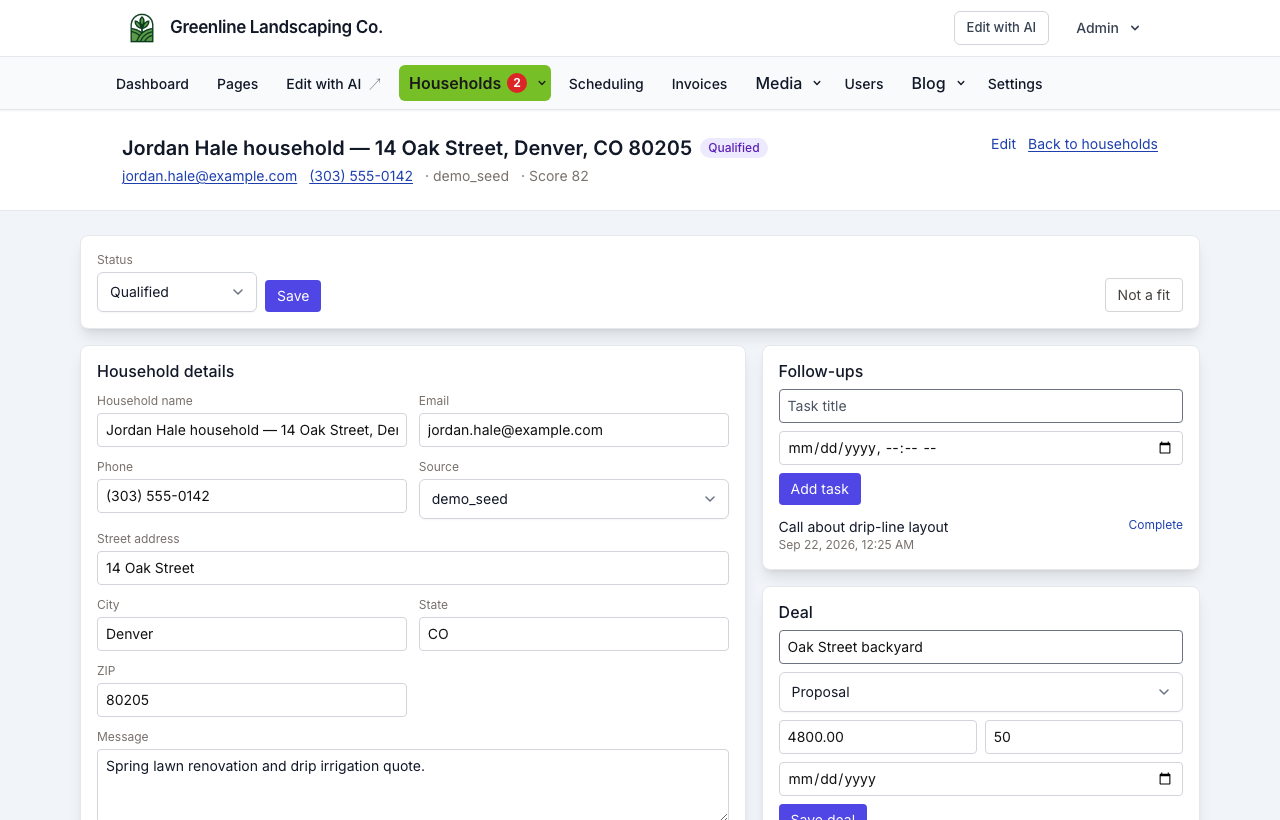
Use Add when someone contacts you outside a form (phone, walk-in, referral). Matching uses contact emails/phones (and service address first for households). Follow-up automations only auto-enroll when that person has marketing consent for the channel.
Not a fit marks the record Lost: it leaves the Open inbox, stops active automations, and stays available under the Lost tab. Use Reopen if you want to pursue them again.
Customer invoices
From a record with a send-to email you can create an invoice (line items, optional memo) and email a pay link. You can also open site admin → Invoices → New Invoice to pick an existing record or enter a new one. Payments go to your Stripe Connect account—same setup used for booking deposits. The page stays titled Invoices (not Orders). See Customer invoices. When website logins are on, that person can also pay from Account on your site. See Website logins.
Tasks
Staff follow-up to-dos — not visitor-facing booking tasks.
- Add tasks on a record detail page
- Tasks index — Cross-record list with due dates
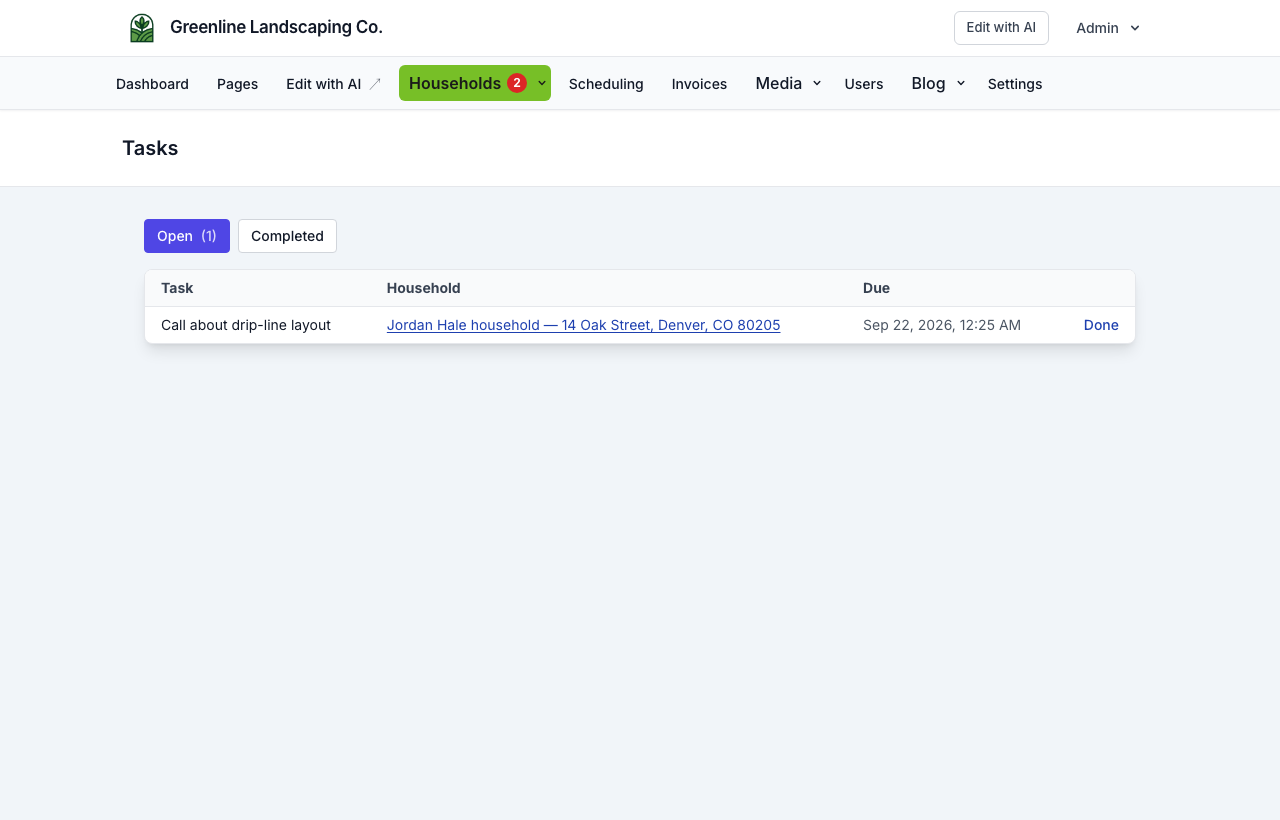
Mark tasks complete when done. Overdue tasks surface on the CRM dashboard and in alerts.
Deals
On record detail you can track deal stage, value, probability, and expected close date. This is a lightweight pipeline view — not a full enterprise CRM. Hide the Deal card in CRM Settings when a pipeline does not fit (dental, preschool, and restaurant demos do this). The module name stays Deal.
Alerts
In-app notifications for actions that need staff attention:
- New lead / Hot lead — immediate inquiry follow-up (wording follows your noun in chrome)
- Overdue task — staff follow-through
- Stale lead — pipeline hygiene after several days with no update
- First contact lag — records that have stayed new for 24+ hours (one sticky card; clears when all are contacted)
- Conversion drop — meaningful drop vs the prior period (not soft traffic/bounce tips)
- Tracking stale — analytics used to receive events and then went quiet (not “never launched”)
Softer analytics tips (empty traffic, bounce, device mix) stay on the CRM dashboard Insights card and the weekly digest — they do not stack in the alerts inbox.
Duplicate conditions use sticky keys (one open card per issue). Daily scans refresh that card instead of adding copies.
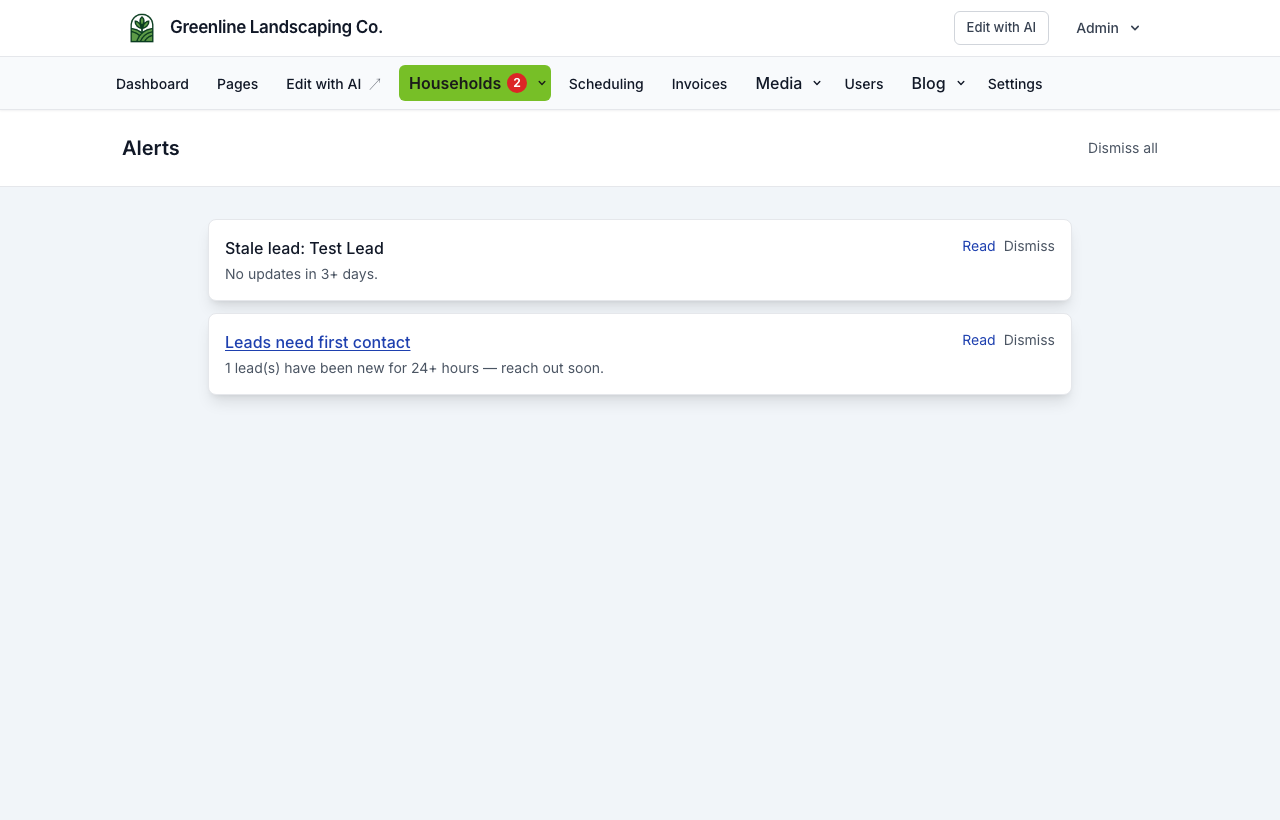
Mark alerts read, dismiss them one at a time, or use Dismiss all from CRM → Alerts.
CRM settings (admin only)
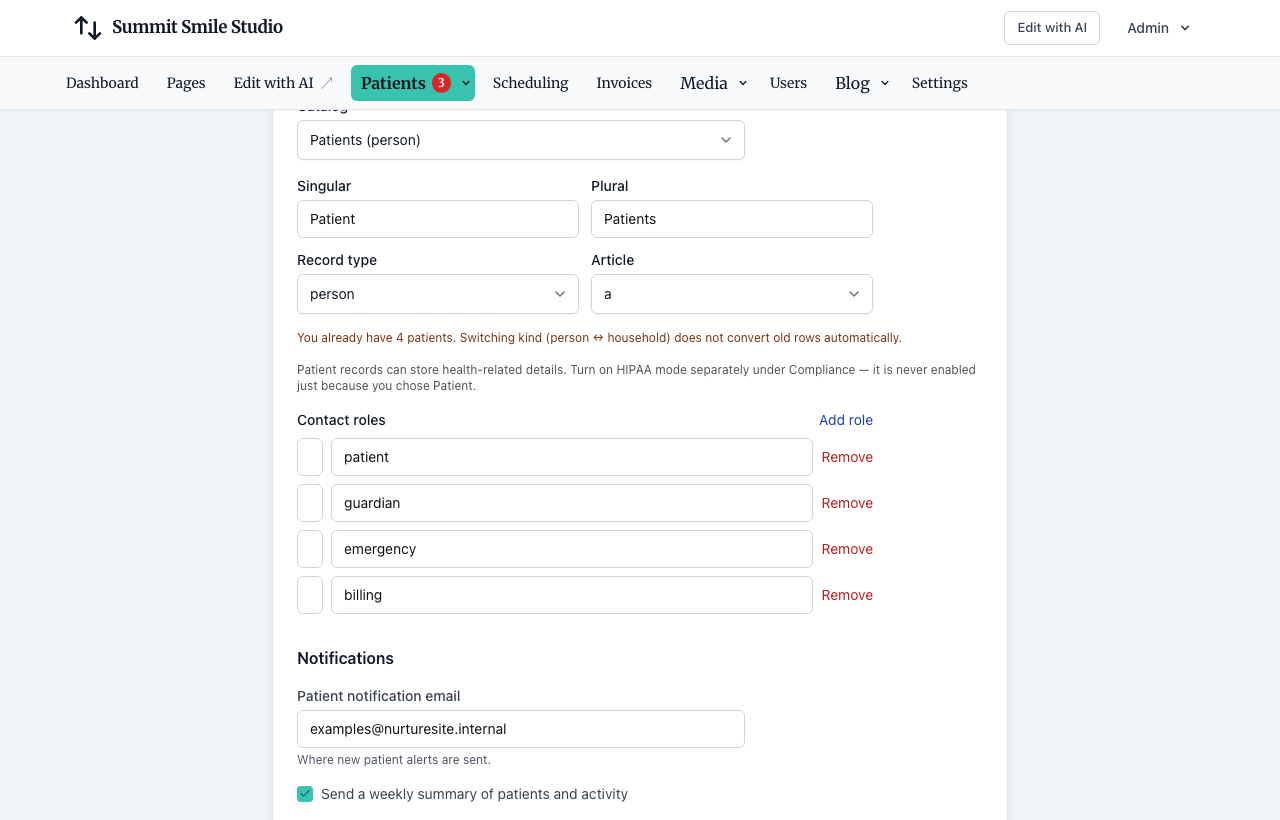
- Notification email — Alert on each new record (also configurable from NurtureSite — see below)
- Primary record — What you call people or places you serve (Customers, Patients, Households, Leads, …) and contact roles
- Outbound email — Transport (platform / Mailgun / SMTP), from name/address, optional staff sender, test email, and automation health (queue/redis status). See CRM outbound email.
- Text messages (SMS) — Connect your own Twilio account (Account SID, Auth Token, From number), send a test text, then use SMS in Conversations and automations. See CRM outbound SMS.
- Lead scoring rules — Adjust how scores are calculated
- Alert rules — Toggle hot/stale/overdue/first-contact/conversion/tracking alerts
- Enable automations — Master switch for follow-up flows (see CRM automations)
- Lead page — Show/hide Deal, Invoice, Notes, Documents; add custom fields for the Details card
Documents & e-sign
CRM → Documents is the site-local library for waivers, intake, and letterhead. Prepare a letter or overlay Standard fields on an uploaded PDF, then send it from the record (Documents → Request signature), from automations, or attach it to a service. Signed PDFs land in the record’s Documents card, with or without a booking, and stay on this site. What we copy from DocuSign-class tools (and what we skip) is in Documents and e-sign.
NurtureSite site page (portal)
On your NurtureSite site detail page you can set the notification email, configure outbound email (platform sending on mg.nurturesite.com, or bring-your-own Mailgun), and edit the default automation template pushed to the site (when sequences are enabled). The heading uses your noun (Customers CRM, Households CRM, Patients CRM).
See CRM outbound email for platform provisioning, BYO DNS, and transport options.
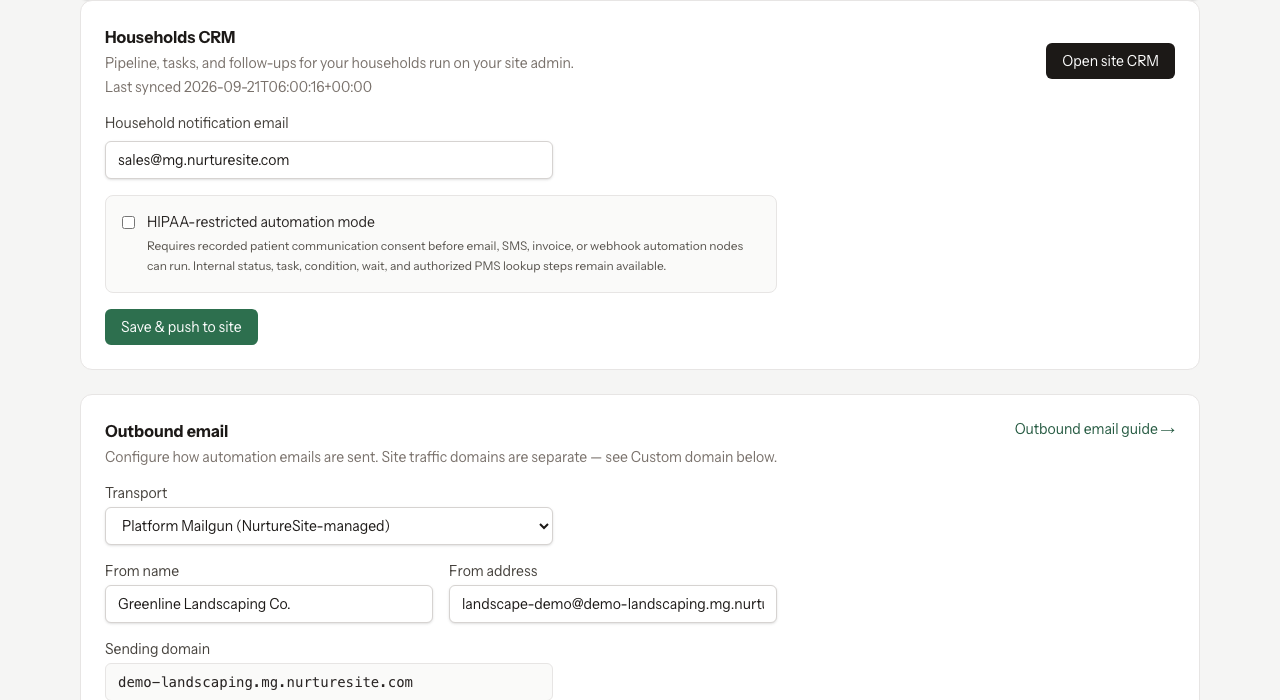
Changes sync to the live site. The site admin can override factory defaults locally; mail metadata syncs back to NurtureSite.
Replies
When outbound mail uses platform or Mailgun transport, replies to automation emails appear on the record detail page in site admin. NurtureSite staff may also see synced prospect replies in the leads inbox when factory CRM sync is enabled.
Message templates
CRM → Templates is this site’s library of reusable email and SMS messages (not shared with other clients). Email templates use a drag-and-drop designer (sections, buttons, images, desktop/mobile preview) that exports email-safe HTML. Images you upload in the designer are stored in Media and served on durable public URLs so they load in real inboxes. Use templates in automations and when composing from a record’s Conversation panel. Merge tags insert record, contact, form, and (when connected) invoice / booking / POS / PMS fields via Insert field. {{first_name}} greets the primary person; {{name}} is the record title (often the address on a household). If example templates look empty after an older import, use Refresh empty examples on the templates index.
SMS templates and the Conversation SMS tab require Twilio to be connected. Until then, SMS is hidden from automation Add node, and the Templates SMS filter is disabled.
Follow-up automations
Visual flows (email, wait, conditions, tasks, team alerts, and more) run from CRM → Automations. Enrollment is per record. See CRM automations.
Export
/admin/leads-export downloads a CSV of records (legacy route; may not appear in navigation). Export includes contacts.
Sync to NurtureSite
New records may webhook to NurtureSite for your portfolio inbox (still shaped as a lead with one email). Pipeline, tasks, and automations are managed in site admin. See When leads sync to NurtureSite.
Related articles
- CRM recordsName the list Customers, Patients, Households, Students, or Leads; primary contact, matching, consent, and send audience.
- CRM automationsVisual follow-up flows: triggers, email, conditions, webhooks, and testing.
- Leads inboxPortfolio form submissions across sites; site admin uses Customers, Patients, Households, Students, or Leads.
- Leads vs bookingsWhen to use contact forms vs the booking scheduler.
- Stripe Connect, deposits, and invoicesCollect appointment deposits, send customer invoices, and receive payouts.
- Customer invoicesInvoice appointment balances and CRM leads; pay links, PDFs, and automations.
- CRM outbound emailPlatform or BYO Mailgun, DNS verification, and automation senders.
- CRM outbound SMSConnect your Twilio account to text leads from Conversations and automations.
- Forms, waivers, and e-signPrepare waivers and intake, collect signatures on your site, and keep signed PDFs on the CRM record—required at booking, sent after, or sent from the record any time.
- Website logins for the people you serveLet patients, guests, households, and other records sign in on your site for appointments, invoices, subscriptions, and preferences.