
Your account
Managing a site
Build progress, preview, site admin handoff, domains, and checklist.
Each site has a detail page in NurtureSite (/sites/{your-site-id}).
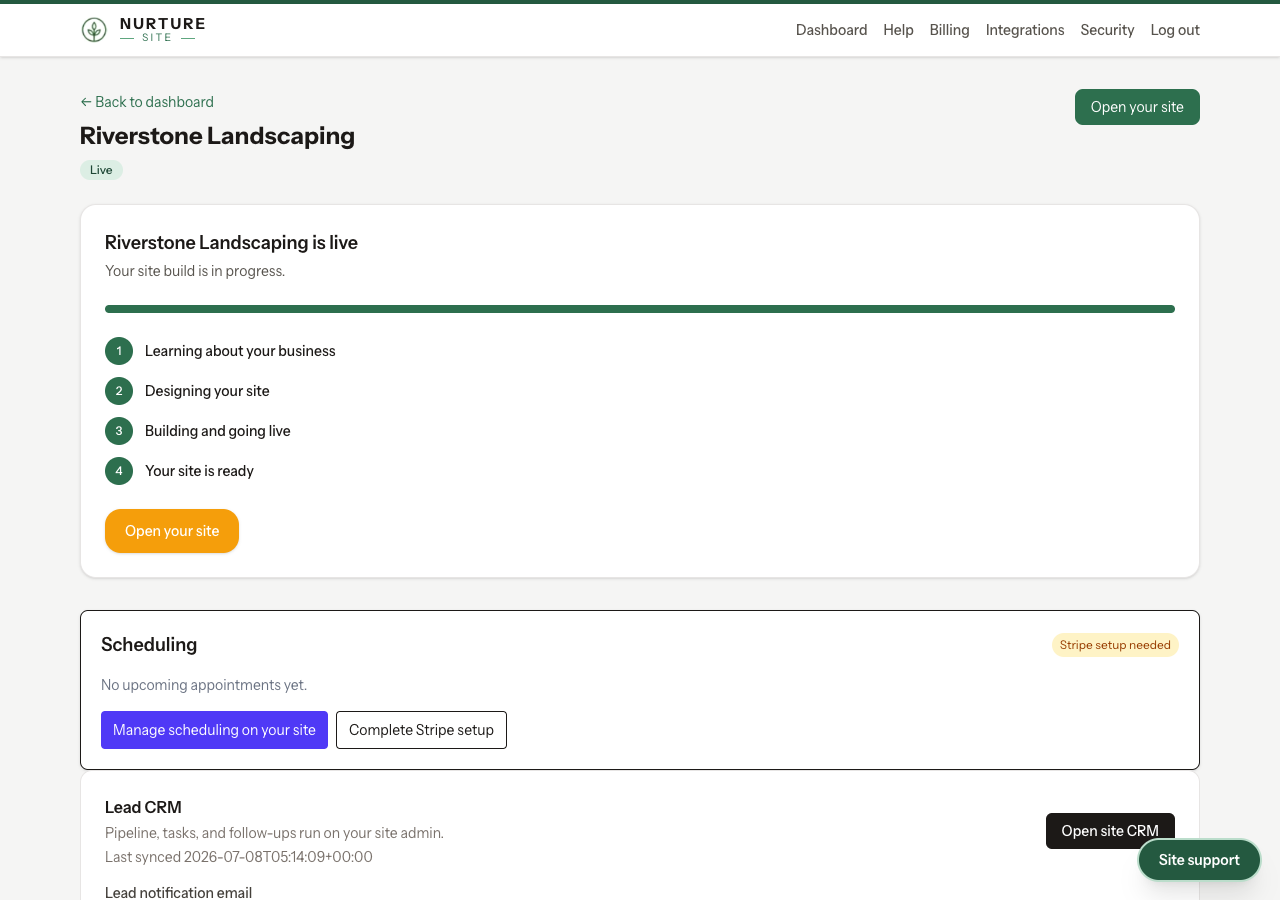
Build progress
- Progress updates automatically while your site builds.
- Failed builds — Use Try again to replan and redeploy.
- When complete, use Open your site for the public preview URL.
Next steps checklist
NurtureSite shows a checklist such as:
- Preview your live site
- Connect a custom domain
- Test your contact form
- Subscribe before the trial ends
Open site admin
- Open site admin — One-click SSO into
yoursite.com/admin. - Show credentials — Reveal break-glass email/password if SSO is not configured.
Scheduling panel
When the site is live, you may see:
- Upcoming appointments (synced from your site)
- Scheduling setup progress
- Manage scheduling on your site — Opens site admin Scheduling hub
- Complete Stripe setup — When deposits or customer invoices need Connect onboarding
CRM notification email
If site CRM is enabled, set the notification email on the site page. It syncs to your live site. You can also configure scoring, alerts, and default follow-up automations from the {noun} CRM section (Customers CRM, Households CRM, Patients CRM). See Site CRM and CRM records.
Brand and theme
From the site page you can preview visual moods, Refresh my brand, Restore previous theme, and override a site-admin brand lock. See Brand and theme.
Custom domain
Add or remove your domain from the site page. See Custom domains.
Analytics teaser
Link to the full per-site analytics dashboard from the site page.