
Site content & admin
Editing your demo site content
Demo chat verification code, text edits via chat, and manual image updates.
Demo sites include a Demo guide chat on the public site. You can ask questions anytime; content and style edits through chat require a one-time edit code from site admin.
Who needs what
| You are | Get admin login from | Get edit code from |
|---|---|---|
| Prospect (demo link only) | Whoever sent the demo (sales rep, agency) | Site admin → Dashboard after you log in |
| Operator (NurtureSite staff) | — | Deployment page → Demo chat edit code (send with credentials) |
The edit code is never shown on the public marketing site or in the chat widget before login.
Step 1 — Log in to site admin
- Open
yoursite.nurturesite.com/admin(or use Open site admin from NurtureSite). - Sign in with the email and password your rep shared.
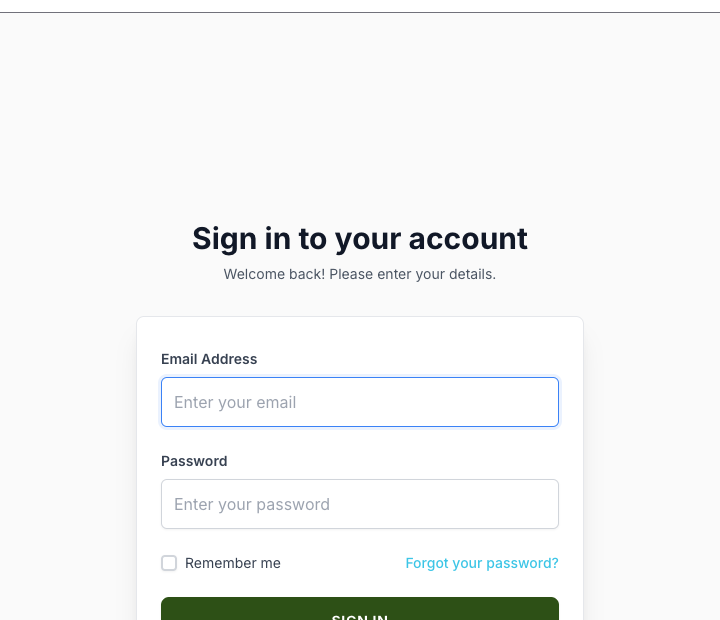
Step 2 — Copy the demo chat edit code
- Go to Dashboard.
- Find the Demo chat edit code card.
- Click Copy code.
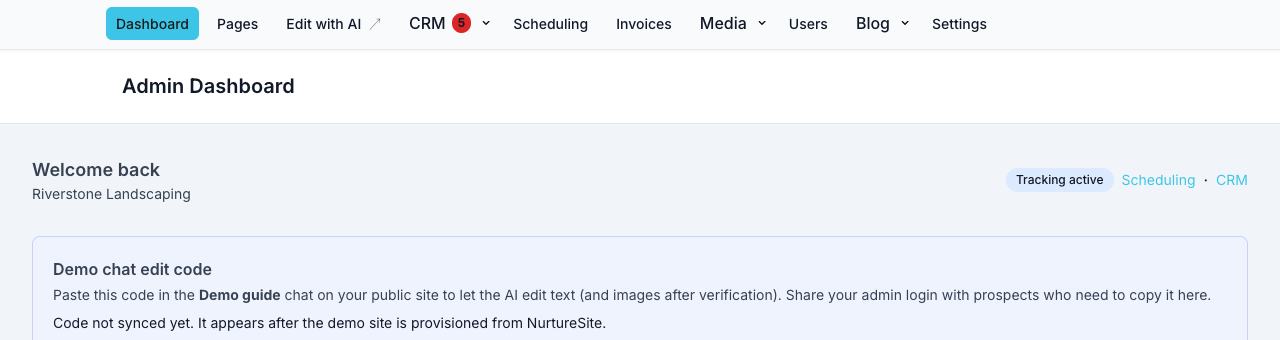
Step 3 — Verify in the Demo guide chat
- On the public site, open Demo guide (bottom-right).
- Paste your code in a message, for example:
My code is ABCD-1234. - When verified, the chat shows Editing enabled.
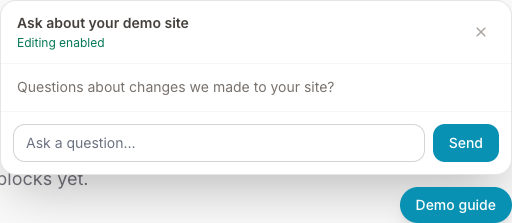
You can then ask for text and style changes on the page you are viewing (headlines, paragraphs, block variants, motion, padding, etc.).
Changing images (manual — recommended for demos)
Chat can update images after verification when image generation is enabled. For reliable results, use site admin:
- Pages → open the page (e.g. Home).
- Scroll to Page Content Blocks (below page settings).
- Open an existing block, or click Browse Blocks / Add Your First Block and choose Image & Text (or a Layout row that contains one).
- Click the image area → Media library → upload or pick a photo → Save.
- Publish the page.
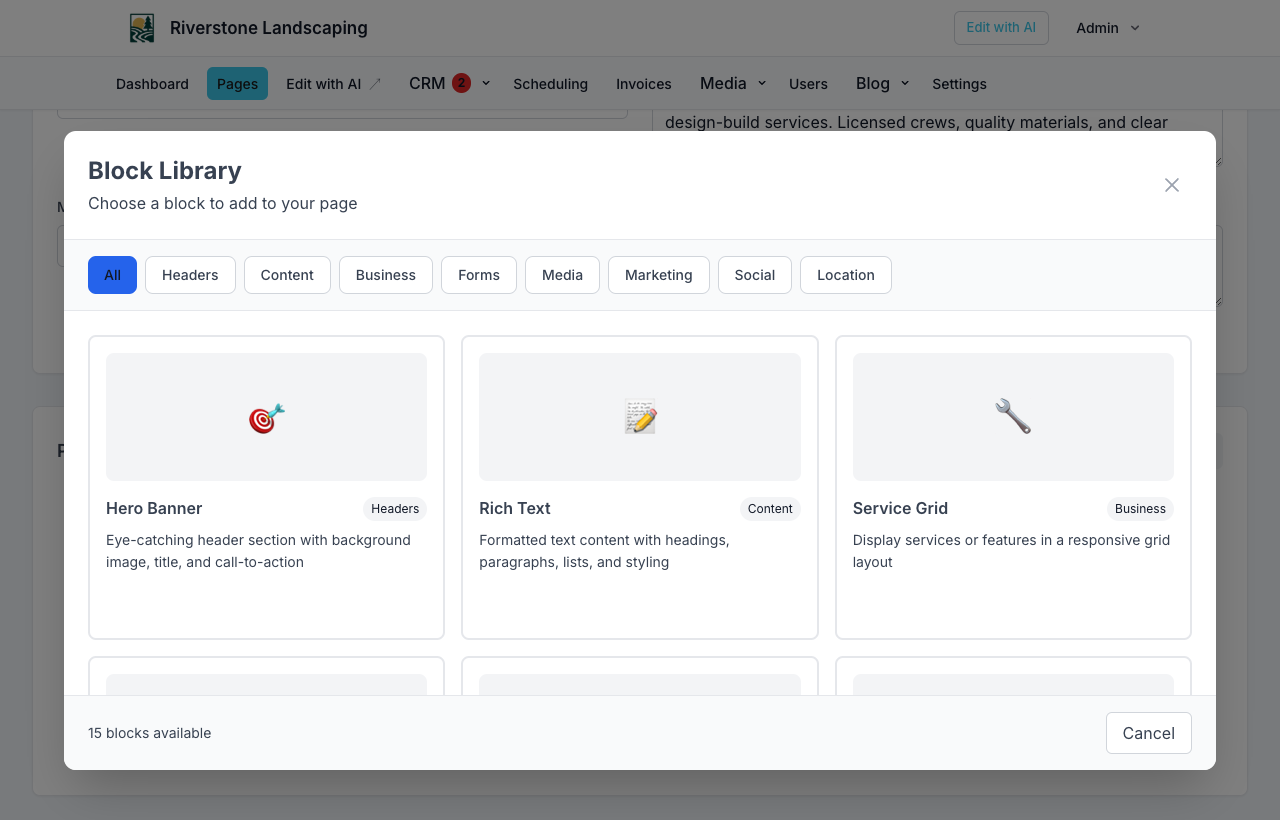
See also Pages and blocks for the full block library, presets, and live preview.
Troubleshooting
| Problem | Fix |
|---|---|
| “Invalid code” | Copy again from Dashboard; ignore spaces/dashes. |
| Code missing on Dashboard | Demo may still be deploying; ask your rep to redeploy or sync. |
| Chat won’t edit | Paste the code again; verification lasts 24 hours. |
| Wrong section updated | Tell the chat the exact headline and stay on that page while chatting. |
| Style didn’t change | Ask for a specific variant or motion (e.g. “use light-cards on features”); site-wide brand locks may block theme refreshes. |
After you go live
When the demo becomes your real site, use the normal Pages editor and your NurtureSite portal AI (no demo code). See Pages and blocks and Site admin basics.