
Booking & payments
Online booking setup
Services, staff, hours, timezone, payments, and the booking block.
Enable visitors to book appointments on your site—and optionally pay a deposit at checkout—in a few steps.
Want to get paid? Complete Stripe Connect to collect booking deposits and later send customer invoices for balances or ad-hoc work.
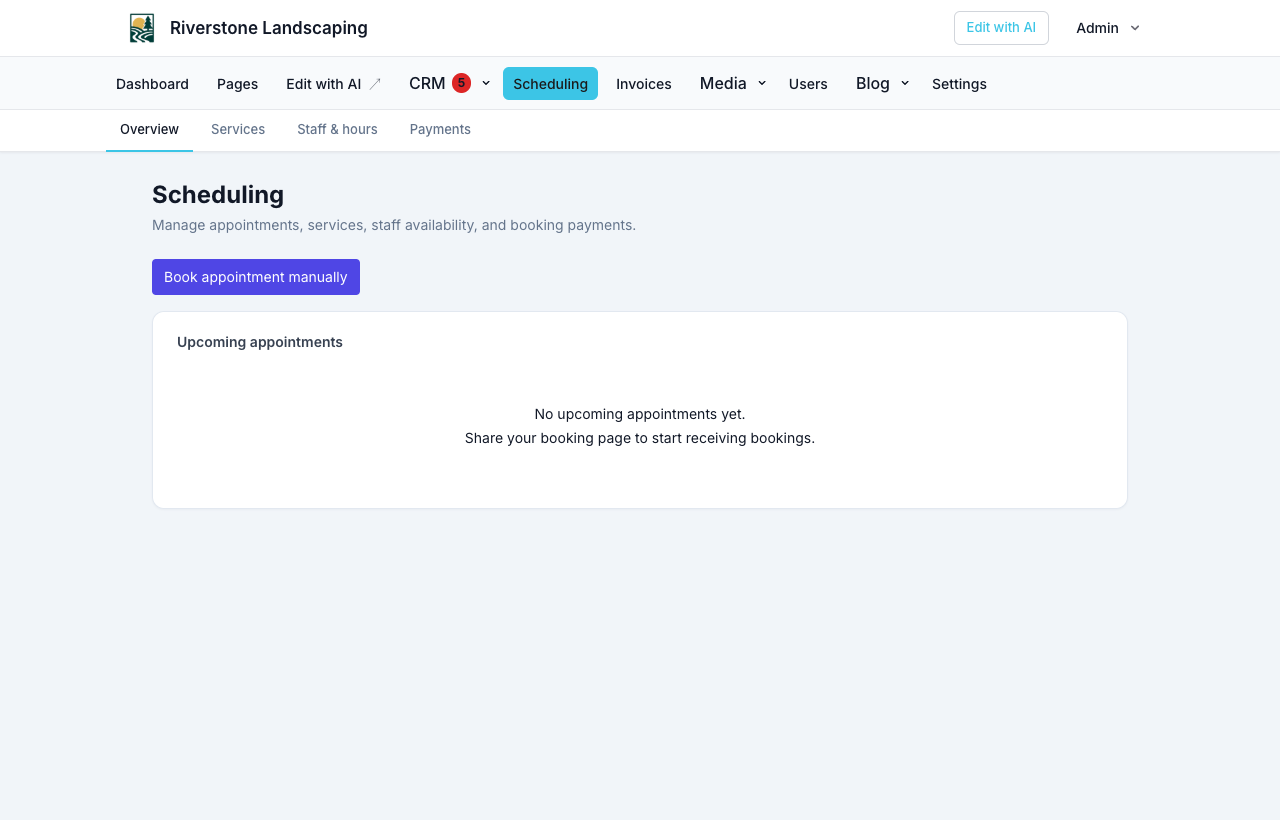
1. Open the scheduling hub
site admin → Scheduling (/admin/scheduling)
The hub shows a setup checklist and a week view of openings and appointments. If empty, defaults may be seeded automatically (one service, Mon–Fri 9–5).
Timezone and hours
When your site is first built, Business timezone is set from your account timezone (the timezone in your browser when you start the site). Openings on the week calendar and the public booking widget use that timezone—not UTC—unless you change it.
- Change timezone anytime: Settings → Scheduling → Business timezone
- Default bookable hours come from Settings → Contact → Business Hours
- Override one person under Scheduling → Staff & hours → Custom hours for this staff
If openings look “wrong,” check Business timezone first (the hub shows the abbreviation next to the day list, e.g. MDT).
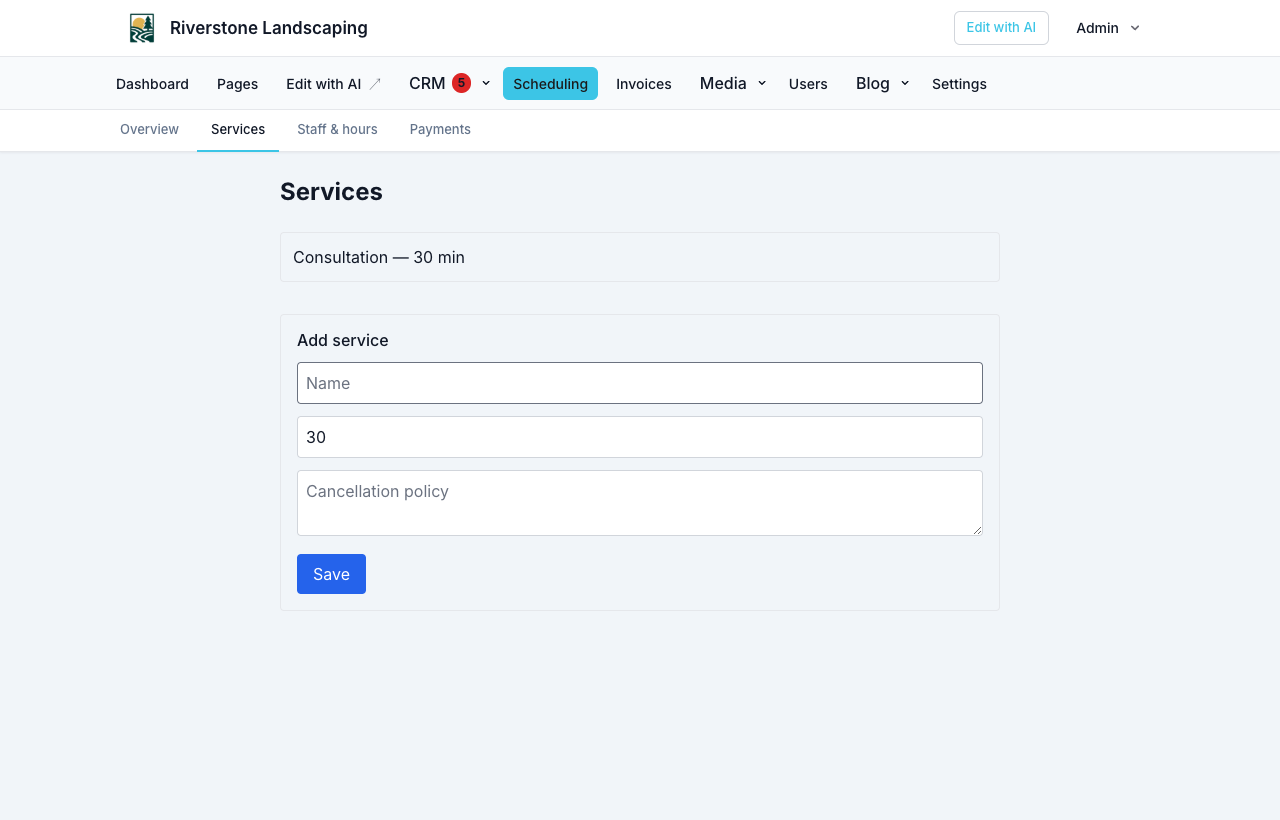
2. Add services
Scheduling → Services
Create booking types with:
- Name and duration
- One-on-one or Group / class mode (capacity, optional specific class times)
- Optional waitlist (full times stay bookable as join-waitlist; see Booking waitlists)
- Description (optional)
- Cancellation policy text and minimum notice hours
Deposit amounts and service prices are configured per service when payments are enabled (prices are required to invoice remaining balances). Group deposits multiply by party size. See Group and class bookings.
Attach document packages (waiver, intake) on the service when visitors must sign before the booking confirms. See Documents and e-sign.
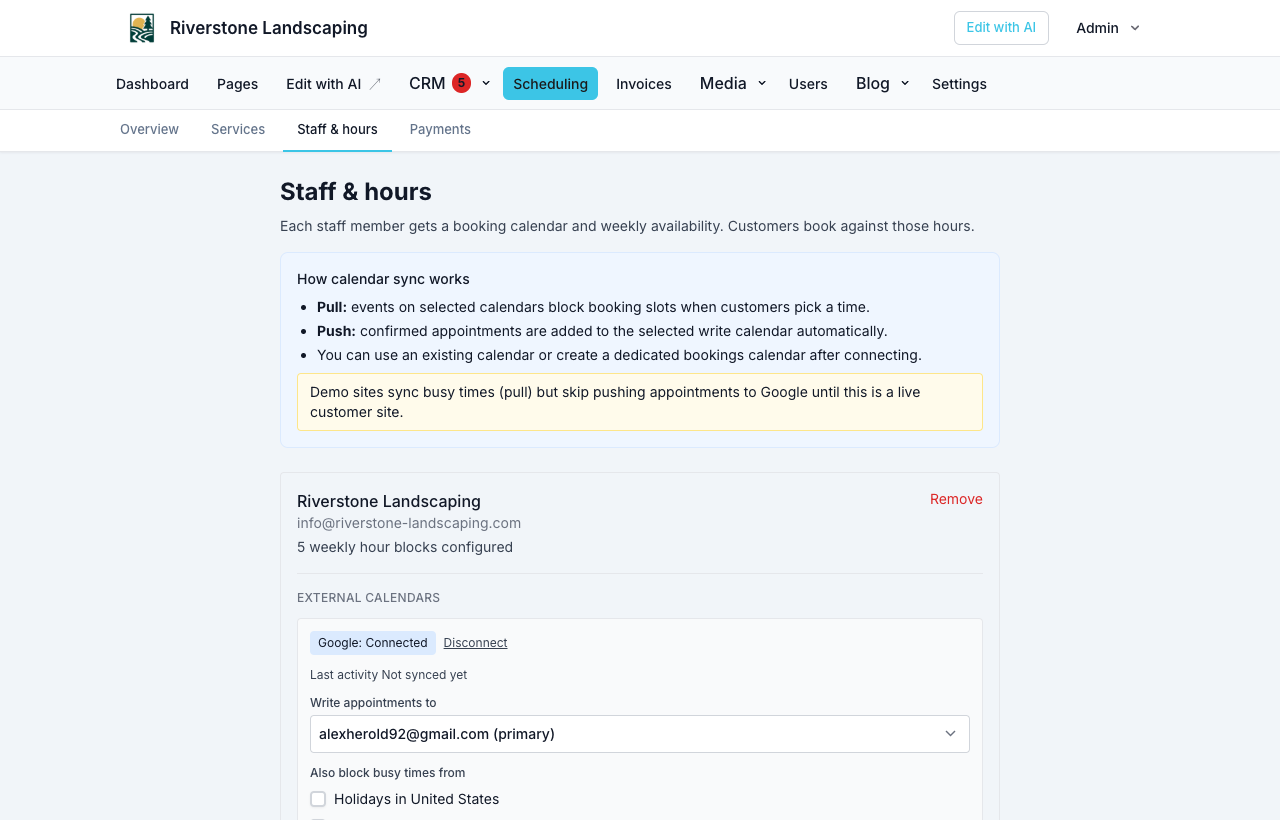
3. Add staff and choose who customers book with
Scheduling → Staff
- Create team members and calendars
- Attach services to each calendar
- Adjust hours per staff when needed
At the top of Staff (and under Settings → Scheduling), set Who customers book with:
| Mode | Visitor experience | Good for |
|---|---|---|
| Service only | Service → date/time. Staff is assigned automatically. | Solo operators, one team calendar |
| Must pick a person | Service → choose staff → date/time | Clinics, named providers |
| Any staff or a named person | Service → Any available or a named stylist → date/time | Salons and spas |
New sites are provisioned with a sensible default for your industry (for example salons get “Any staff or a named person”). You can change it anytime. See Who customers book with.
4. Payments (optional)
Scheduling → Payments
- View Stripe Connect status
- Complete Connect onboarding via NurtureSite if deposits or invoices are required
- Enable deposits per service after Connect is ready
- After Connect is ready, use Invoices in site admin (or appointment / CRM record detail) to send payment links
See Stripe Connect, deposits, and invoices.
While a customer is on Checkout, their slot is held for Slot hold minutes (default 15). Change that under Settings → Scheduling. See Unpaid holds.
5. Place the booking block
Pages → edit your booking page → add Booking scheduler block → publish.
Share the page URL in navigation and marketing.
Email templates
Scheduling → Email templates — Edit confirmation, reschedule, waitlist, class update, deposit request, and reminder subject and body with the same drag-and-drop email designer used for CRM templates.
Verify
- Book a test appointment without deposit (and without required packages) → status confirmed, confirmation email queued.
- After Connect: book with deposit → complete Checkout → appointment confirmed.
- If the service has a required package: book → sign → then Checkout or confirm. See Forms, waivers, and e-sign.
- Confirm the week hub shows openings in your Business timezone.
NurtureSite glance
View upcoming bookings on your NurtureSite site page. See Scheduling overview.
Related articles
- Who customers book withService-only, must pick a person, or any stylist — and industry defaults.
- Group and class bookingsCapacity, class times, party size, and remaining spots on the widget.
- Booking waitlistsPer-service waitlists, offer-to-claim holds, class email, and booking amendments.
- Managing appointmentsView, cancel, invoice balances, confirmation emails, and customer manage links.
- Scheduling overviewUpcoming appointments and Stripe Connect in NurtureSite.
- Stripe Connect, deposits, and invoicesCollect appointment deposits, send customer invoices, and receive payouts.
- Forms, waivers, and e-signPrepare waivers and intake, collect signatures on your site, and keep signed PDFs on the CRM record—required at booking, sent after, or sent from the record any time.