Site content & admin
Block types
What each page block looks like and when to use it.
Pages are built from blocks. Add them in site admin with Browse Blocks, or describe the change in the AI site editor.
Pick a type below to jump to its example. Icons match the site admin Block Library.
Browse by type
Headers
Marketing
Social
Location
Scroll down for live screenshots, or use Browse by type above to jump.
Headers
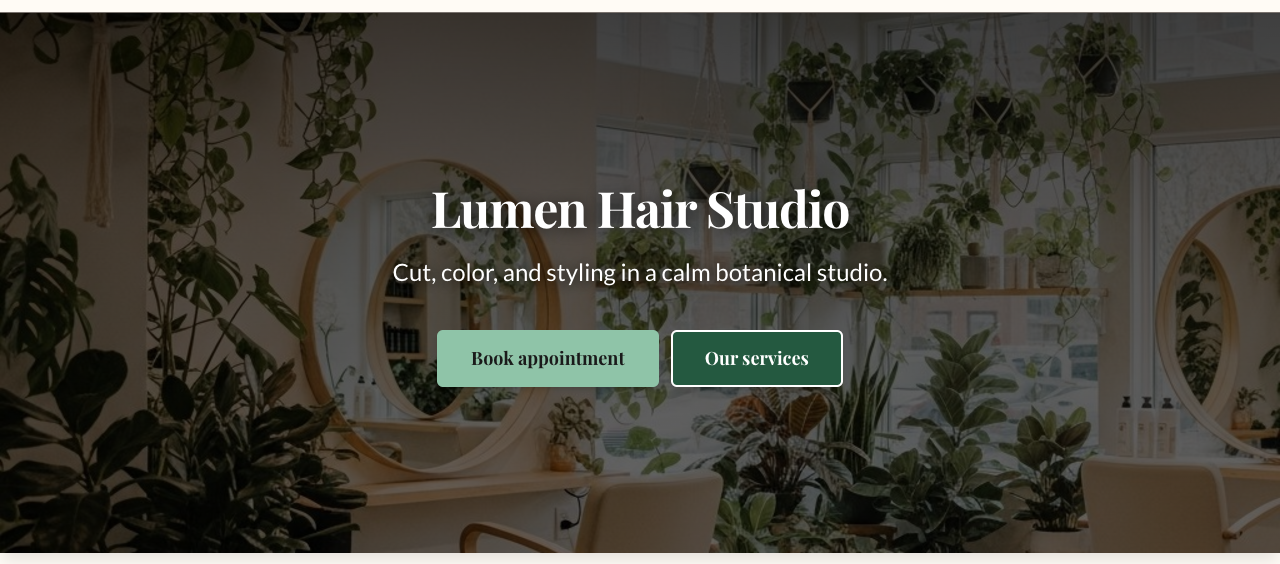
🎯 Hero Banner
Eye-catching header section with background image, title, and call-to-action.
Use for: The top of home and key landing pages.
Content
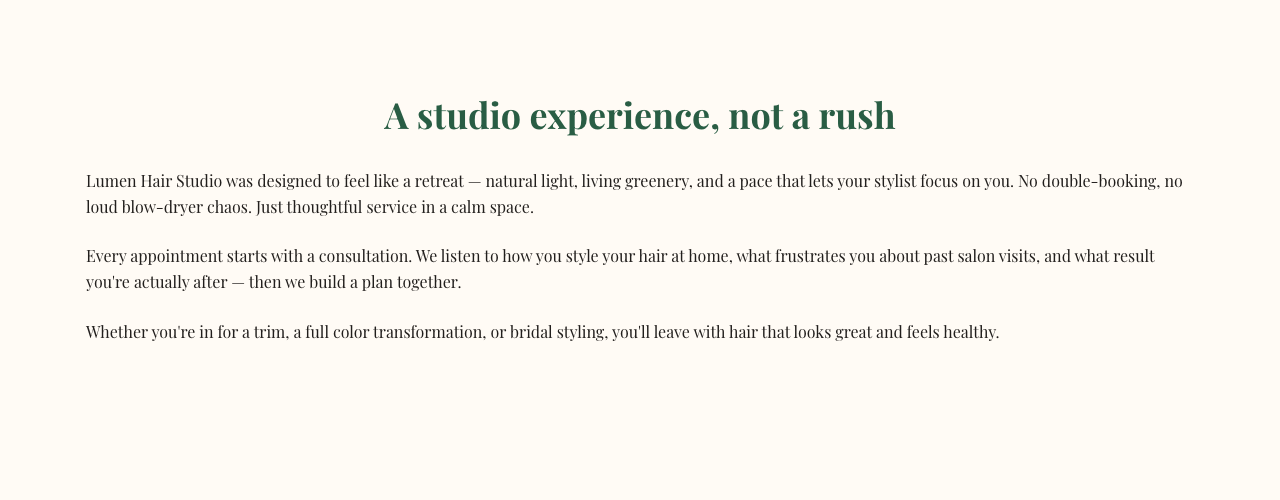
📝 Rich Text
Formatted text content with headings, paragraphs, lists, and styling.
Use for: About copy, policies, and long-form page body content.
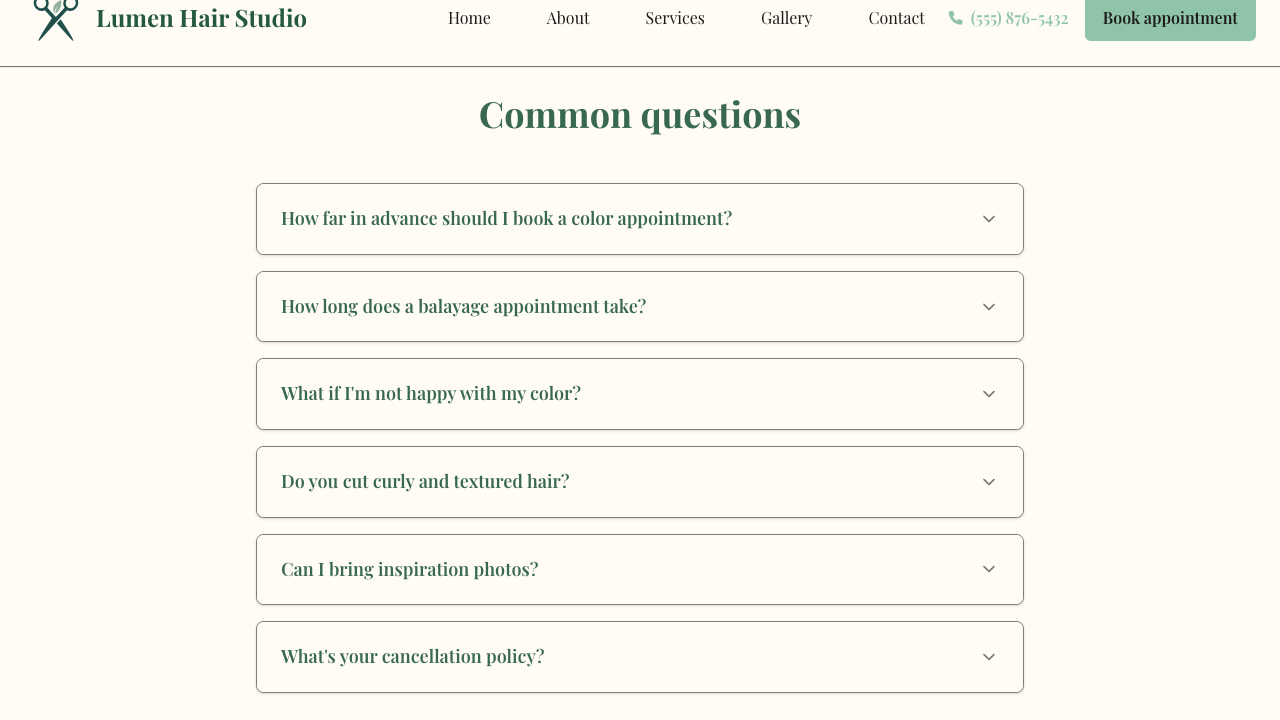
❓ FAQ Section
Frequently asked questions with collapsible answers.
Use for: Services, pricing FAQs, and common visitor questions.
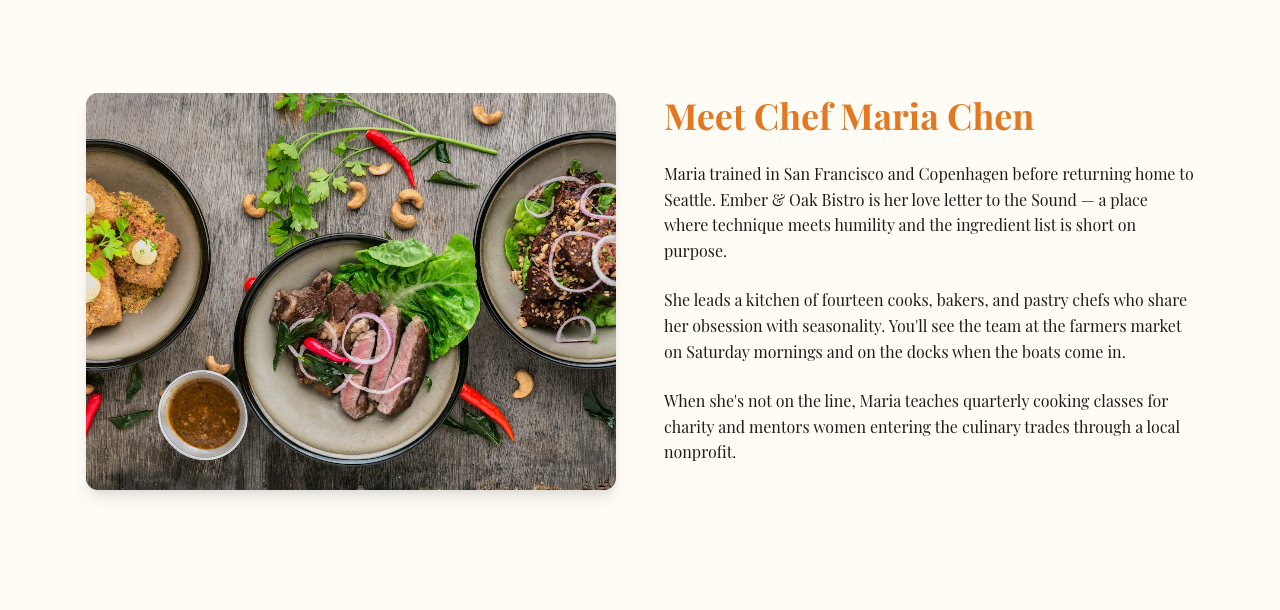
🖼️ Image & Text
Side-by-side image and text content.
Use for: Story sections, process steps, and feature callouts with a photo.
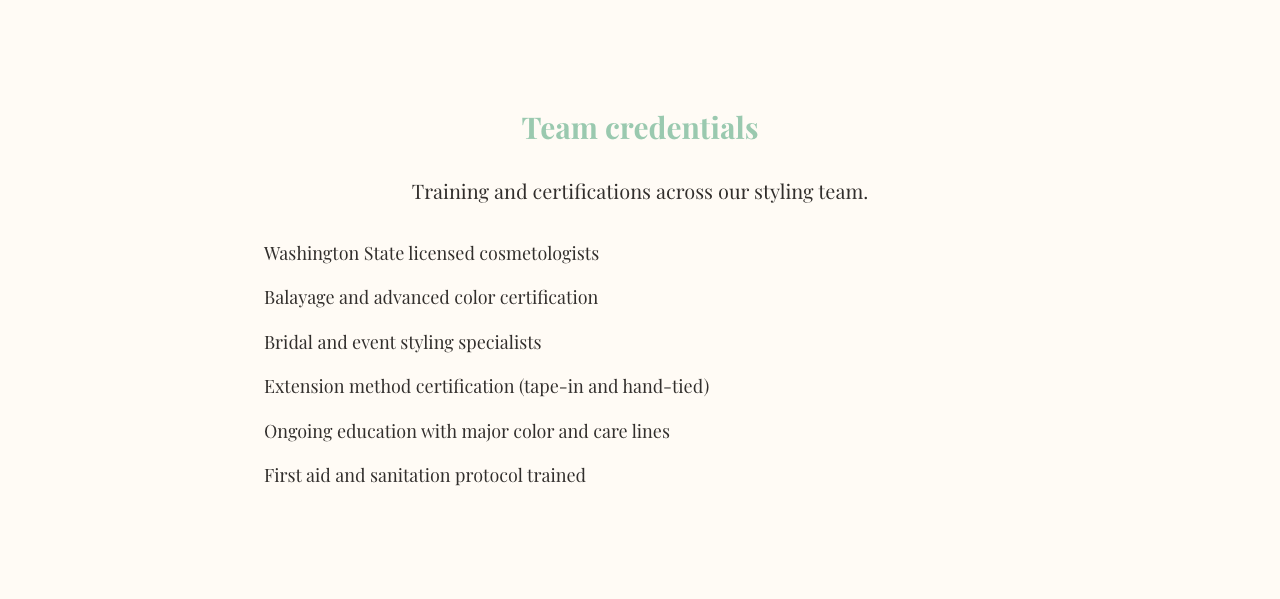
📋 List Section
Organized lists with bullets, numbers, or custom styling.
Use for: Benefits, inclusions, and step-by-step outlines.
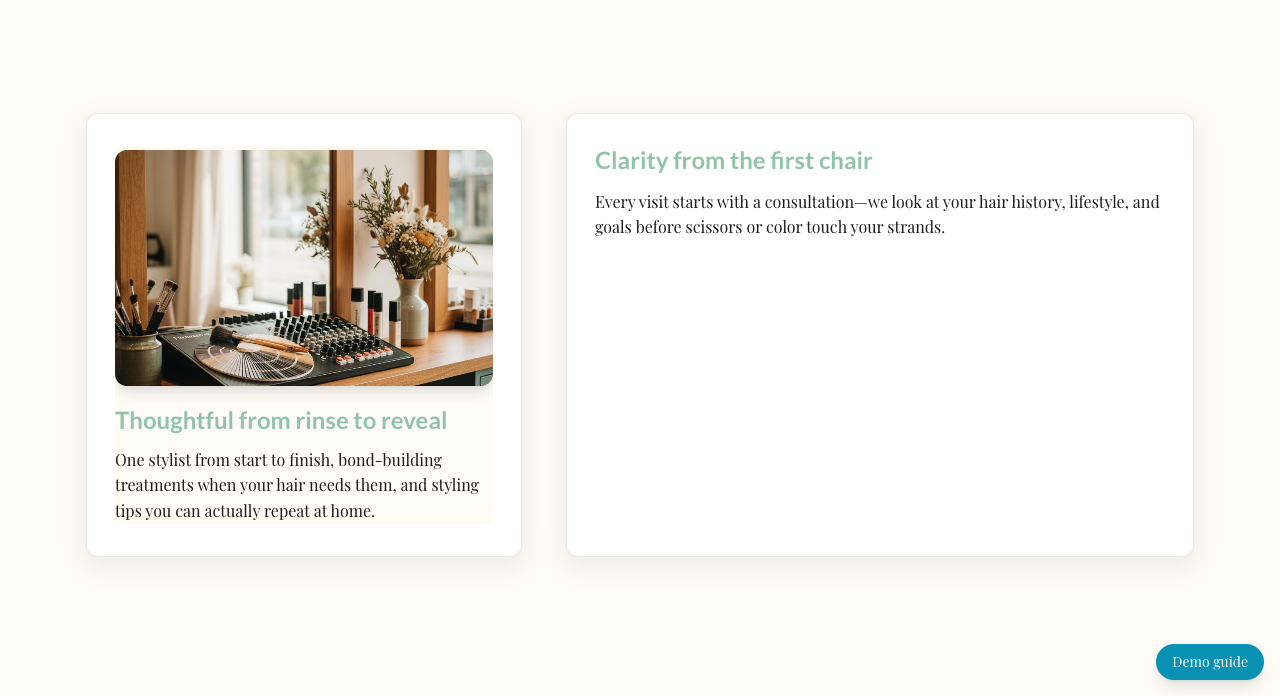
▦ Layout row
Multi-column row for side-by-side content blocks.
Use for: Placing smaller blocks next to each other (for example, text beside contact info).
Business
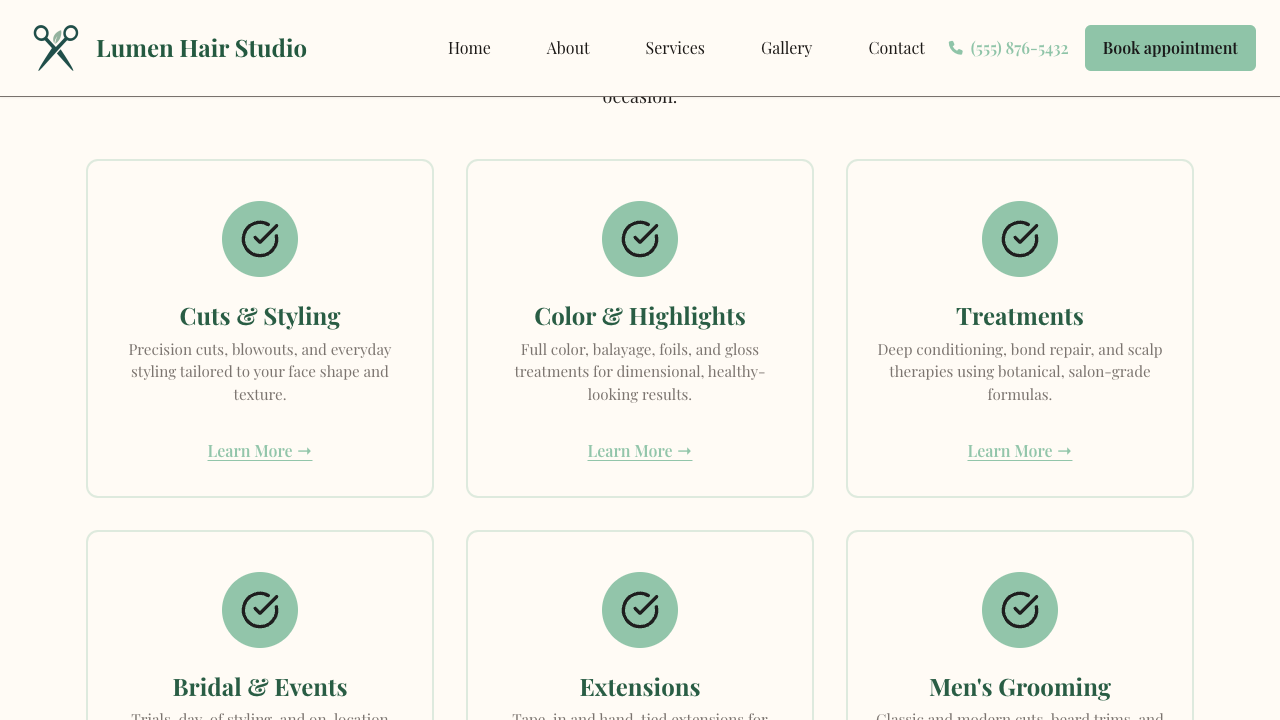
🔧 Service Grid
Display services or features in a responsive grid layout.
Use for: Your main service menu on home and services pages.
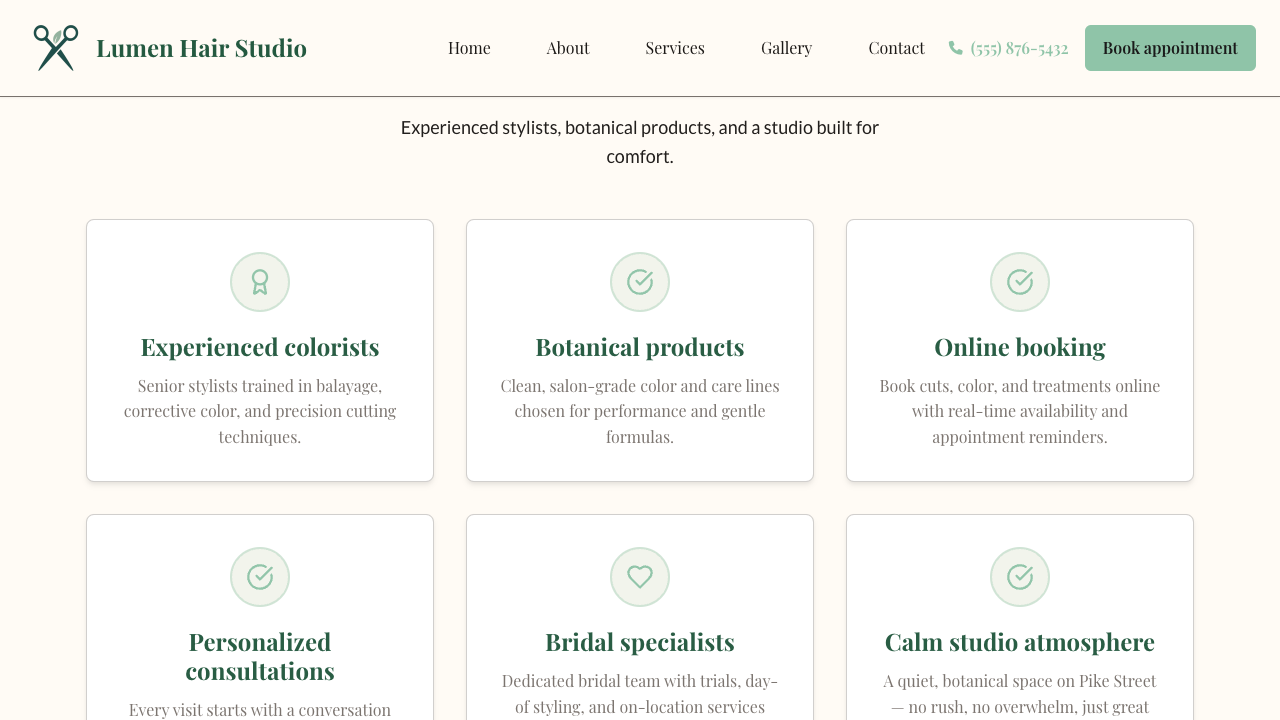
⭐ Feature Section
Highlight key features or benefits with icons and descriptions.
Use for: Differentiators, guarantees, and “why us” sections.
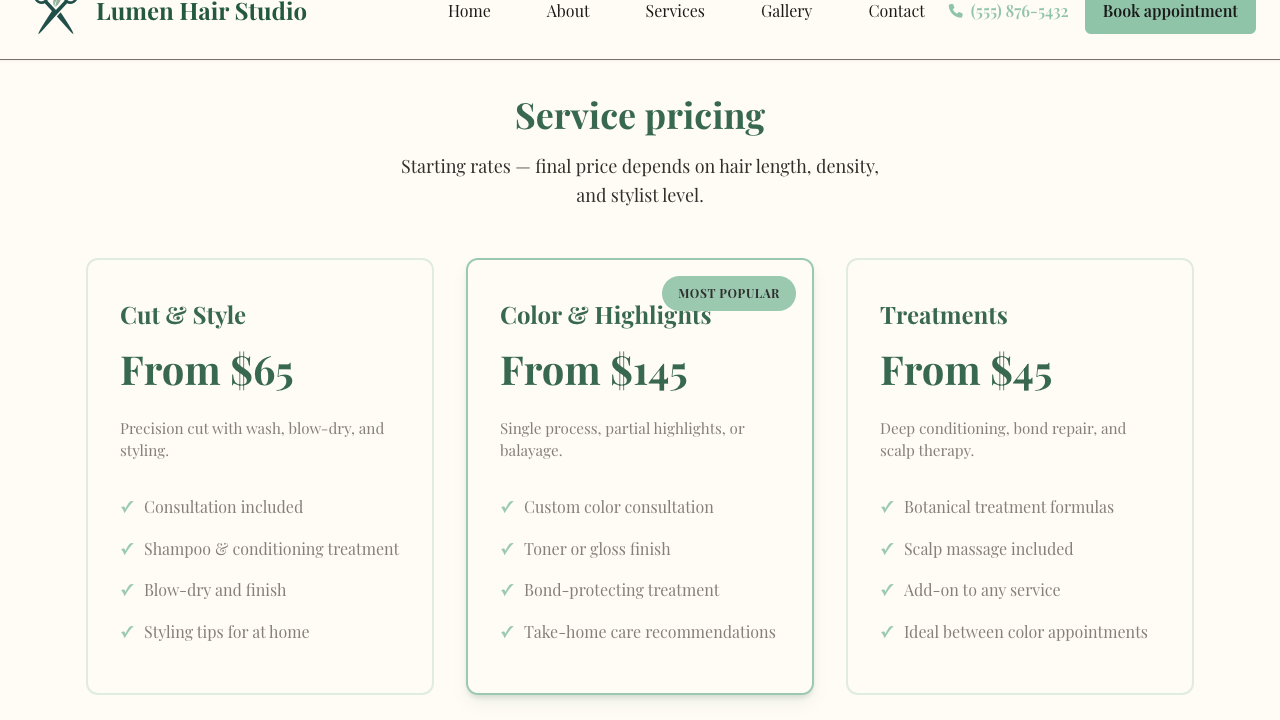
💰 Pricing Section
Display pricing tiers and plans in comparison format.
Use for: Packages, memberships, and transparent rate cards.
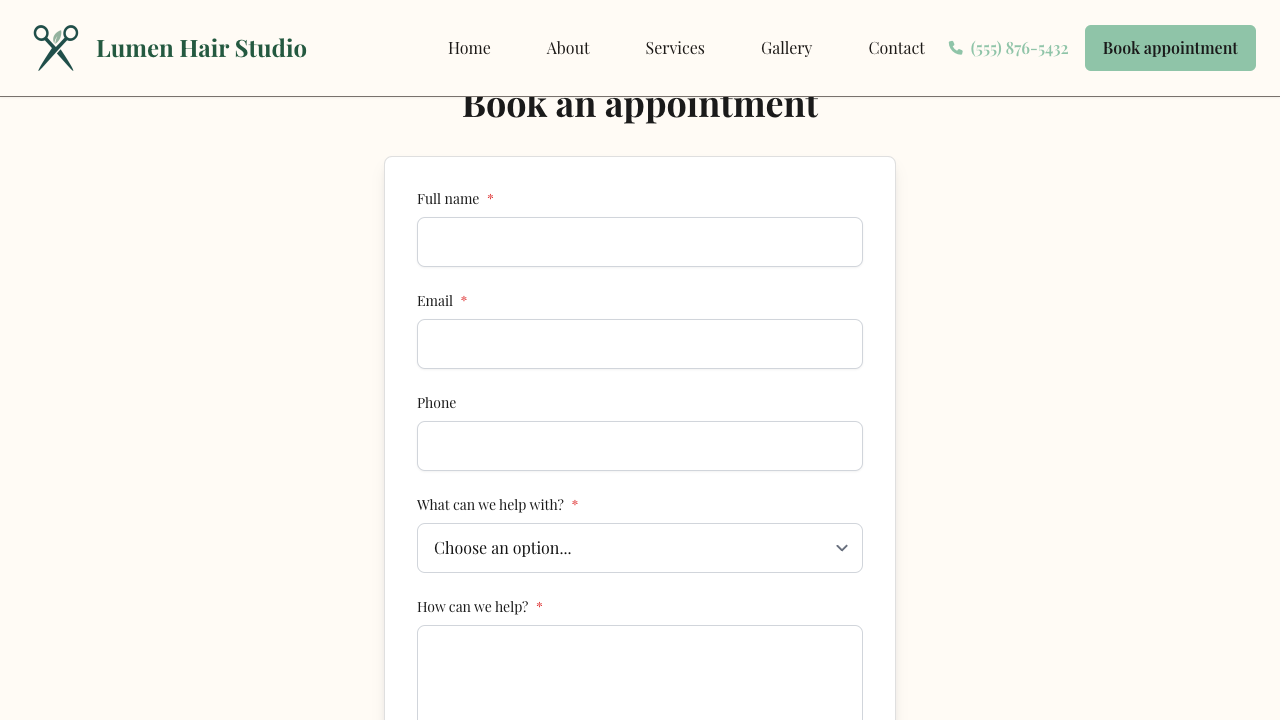
Forms
📞 Contact Form
Customizable contact form with various field types.
Use for: General inquiries that become leads in your CRM. See Leads vs bookings.
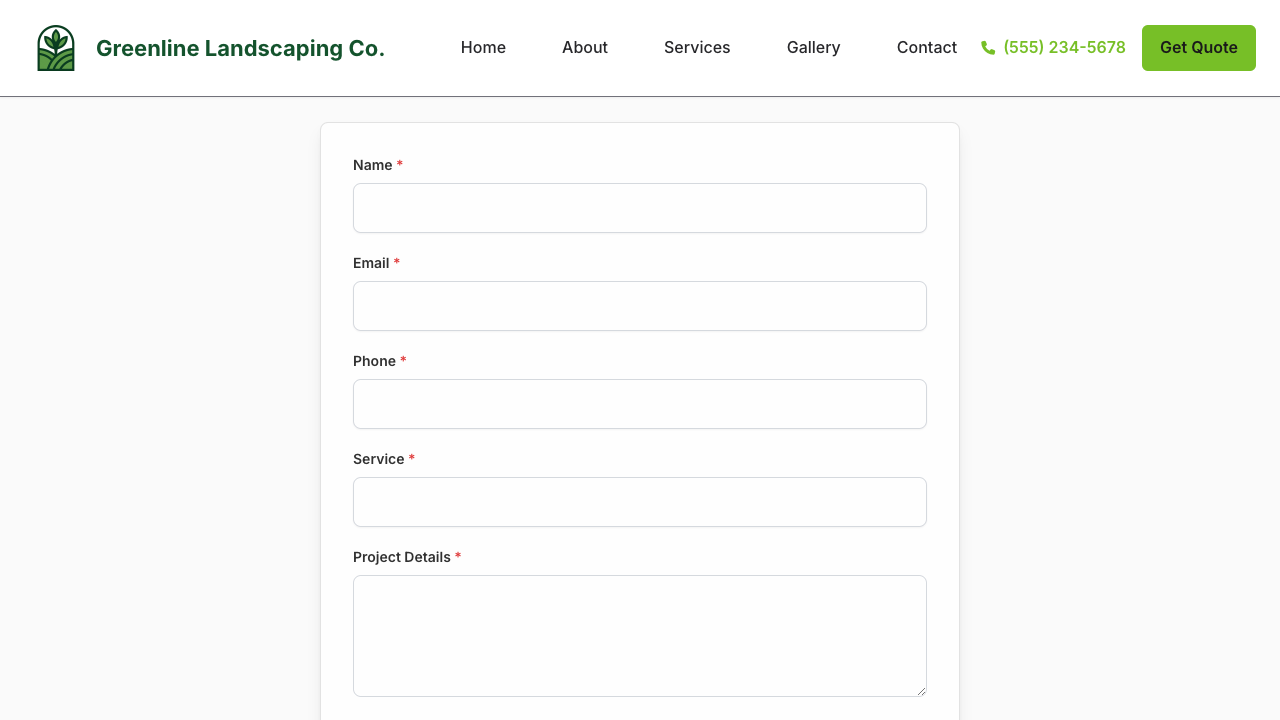
📝 Quote Form
Project quote request form for lead generation.
Use for: Estimates and project requests (common for home services).
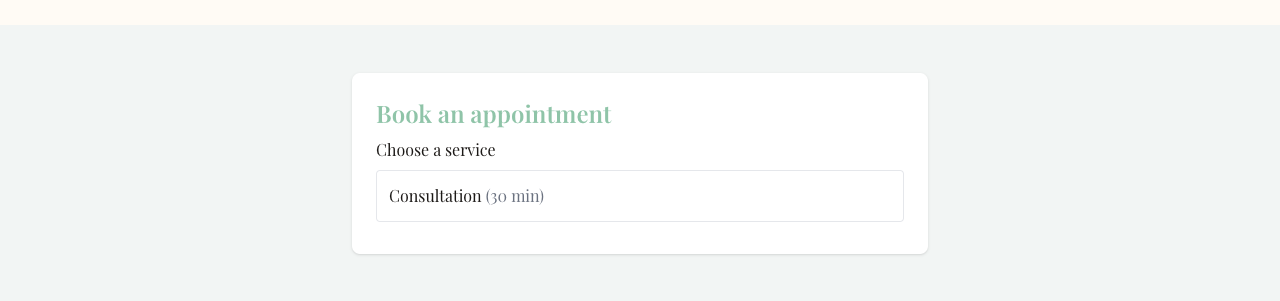
📅 Booking scheduler
Let visitors book appointments online.
Use for: Time-specific appointments and group classes with optional deposits. Place it on a booking page, then configure services under Scheduling. Group classes show spots left and party size. See Online booking setup, Group and class bookings, and Pages and blocks.
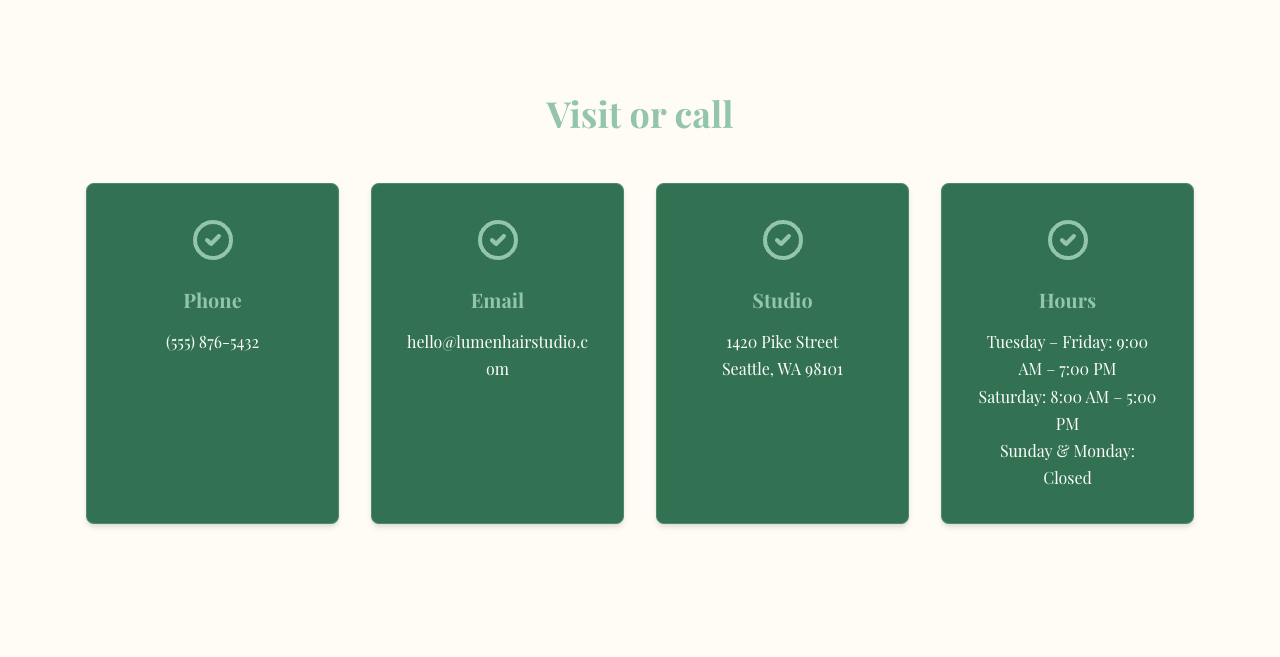
📍 Contact Info
Business phone, email, address, and hours display.
Use for: Contact pages and footers of key conversion pages.
Media
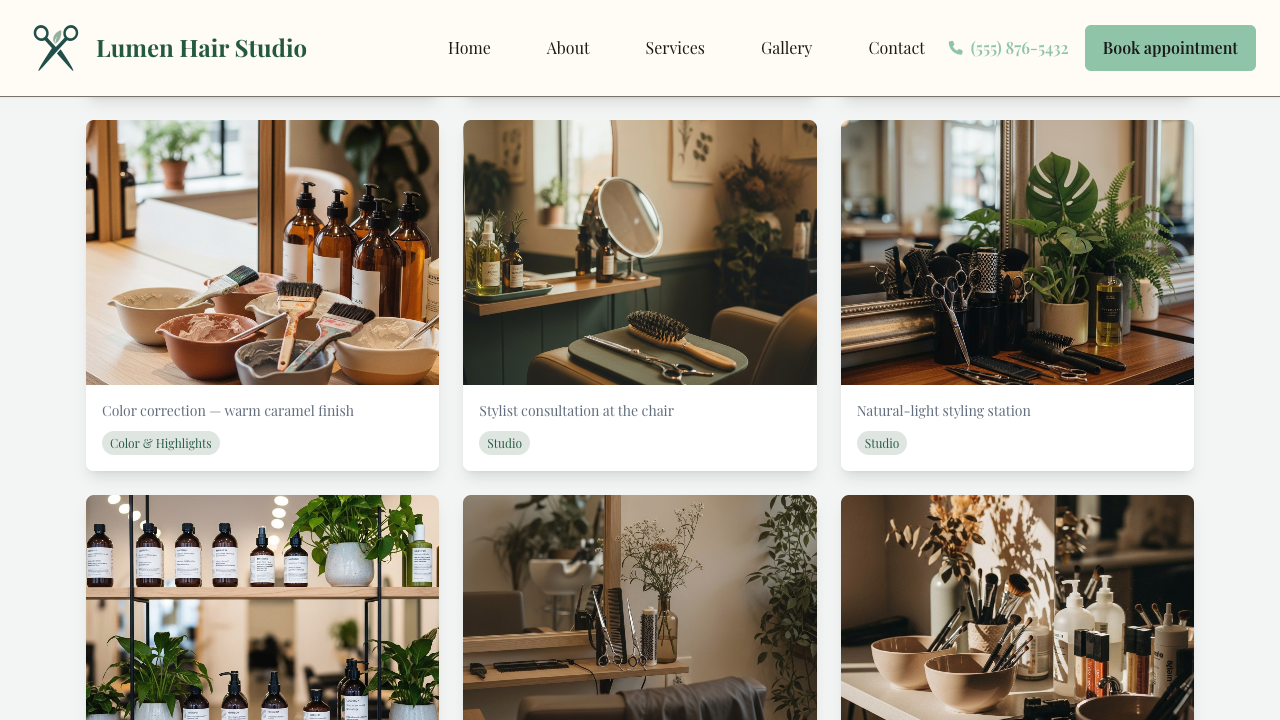
🖼️ Gallery Grid
Image gallery with lightbox functionality.
Use for: Project portfolios, before/after work, and salon or studio galleries.
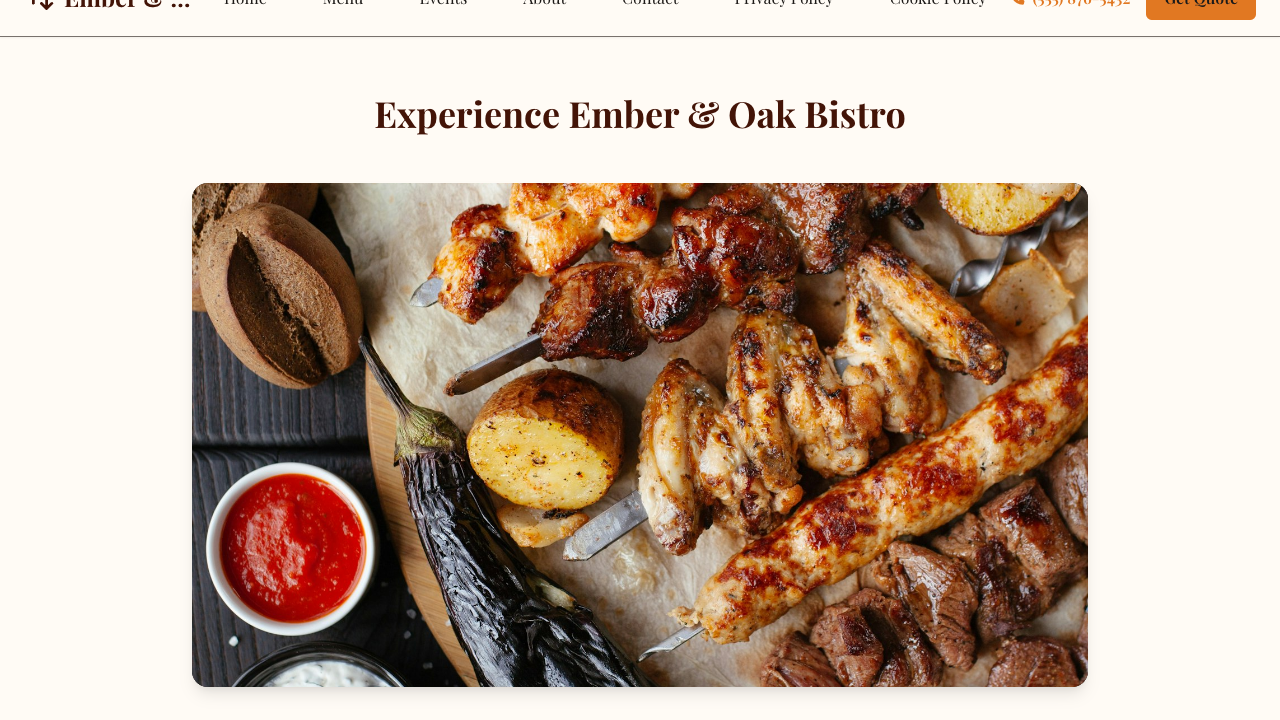
🎥 Video Section
Embedded video with optional title and description.
Use for: Intro videos, walkthroughs, and atmosphere (for example restaurant or studio B-roll).
Marketing
🚀 Call-to-Action
Prominent action section to drive conversions.
Use for: Mid-page and footer prompts to call, book, or contact you.

Social
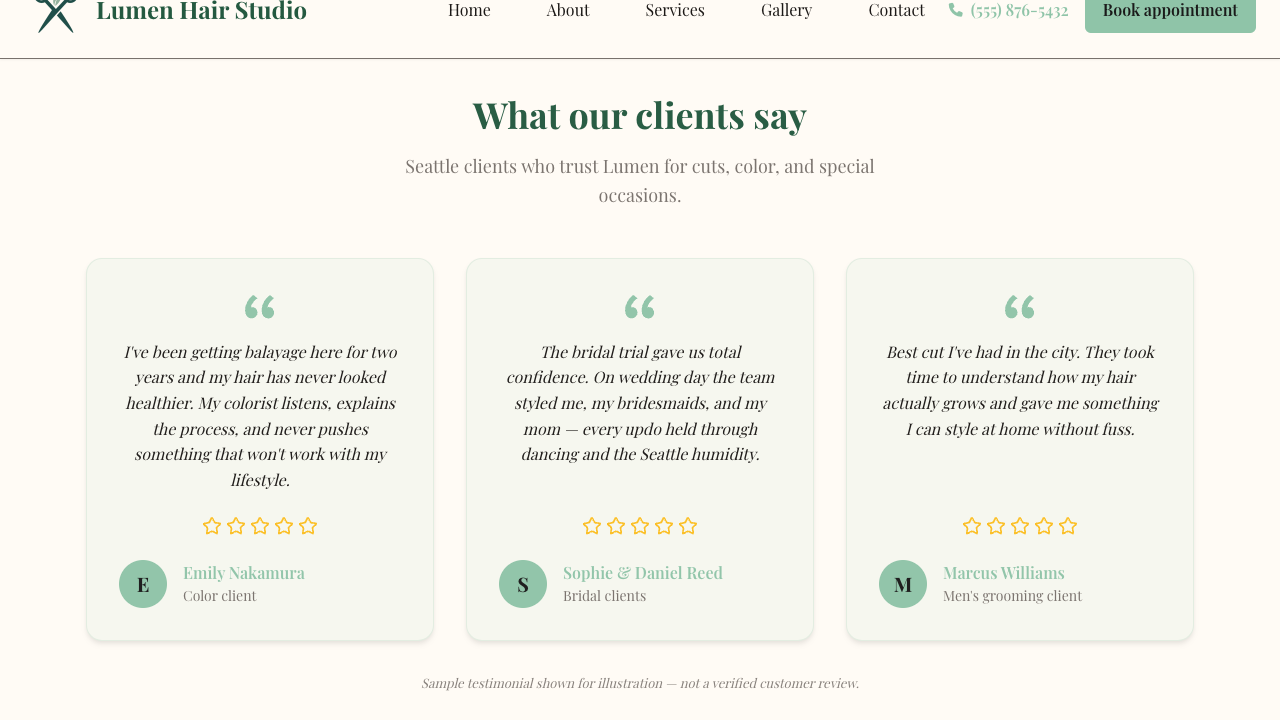
💬 Testimonials
Customer testimonials and reviews.
Use for: Social proof near services, pricing, or the contact form.
Location
🗺️ Map Section
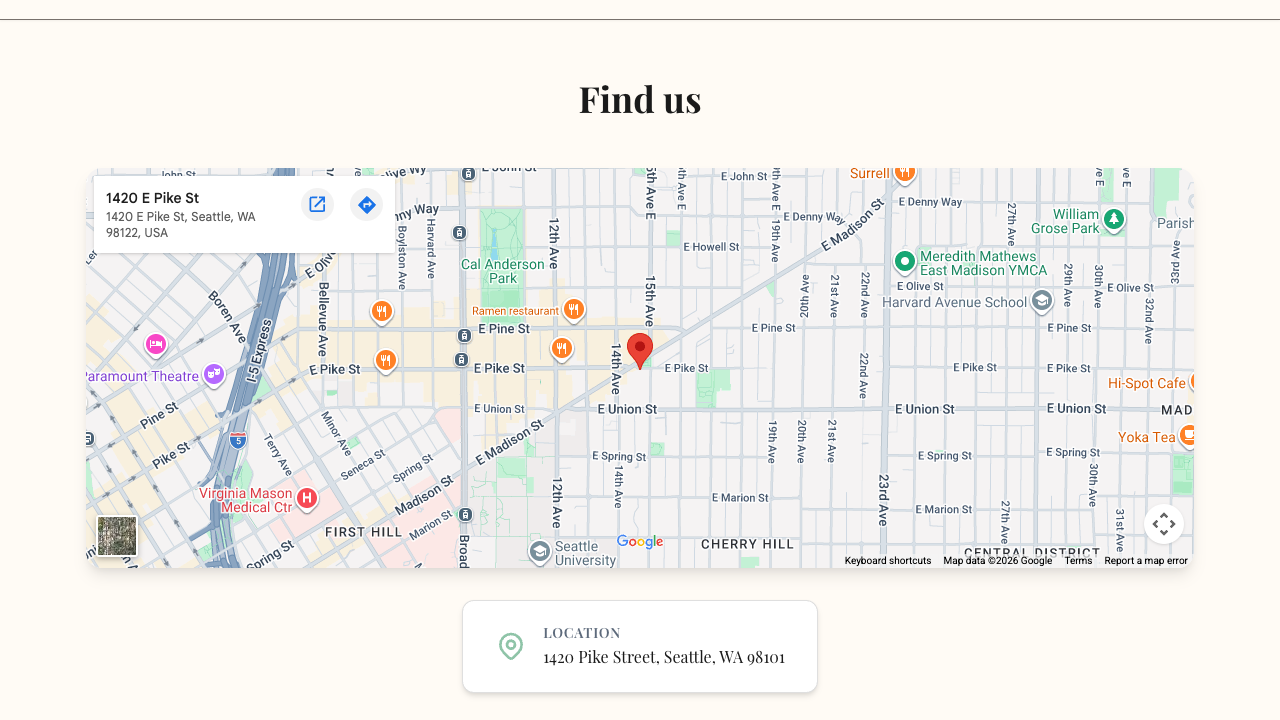
Interactive map with location markers.
Use for: Contact pages so visitors can find you.