
Getting started
Getting started
Register, complete onboarding, and launch your first site.
Welcome to NurtureSite. This guide walks you from signup to a live site with CRM records, online booking, and analytics.
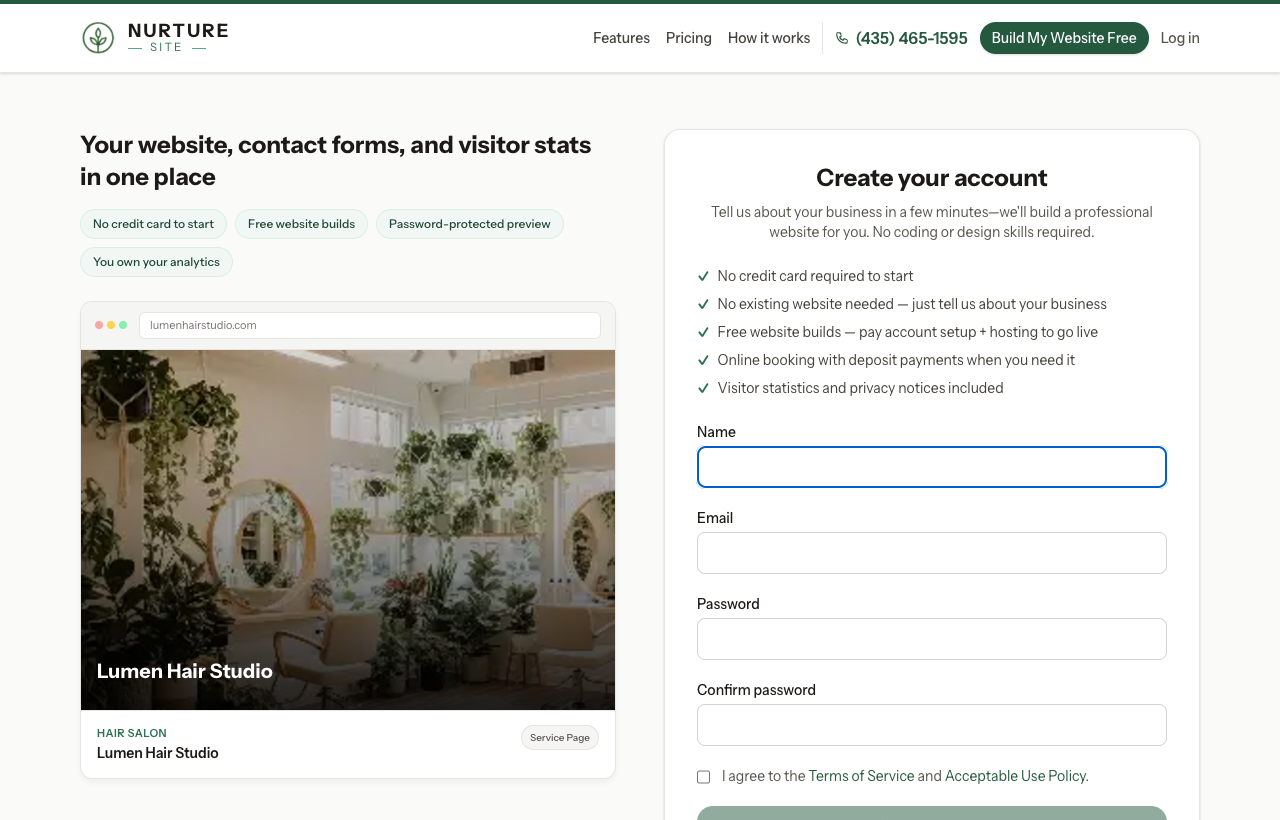
1. Create your account
- Go to Start your 14-day trial and register with your email and password.
- Site build is included with your $79/mo plan. Checkout starts a 14-day free trial before the first charge.
2. Complete onboarding (four steps)
- Business — Company name, industry, optional existing website URL, optional site name.
- Vision — Describe what you want the site to accomplish; optional tone and visual mood.
- Plan — Confirm billing interval (monthly $79/mo or yearly save 20%). Site build is included. Checkout starts a 14-day free trial; generation begins after payment method is on file.
- Review — Confirm details and start the build.
After you submit, NurtureSite researches your business, generates pages, enables analytics and consent, and deploys your site. Most builds finish in about 15 minutes.
3. Watch build progress
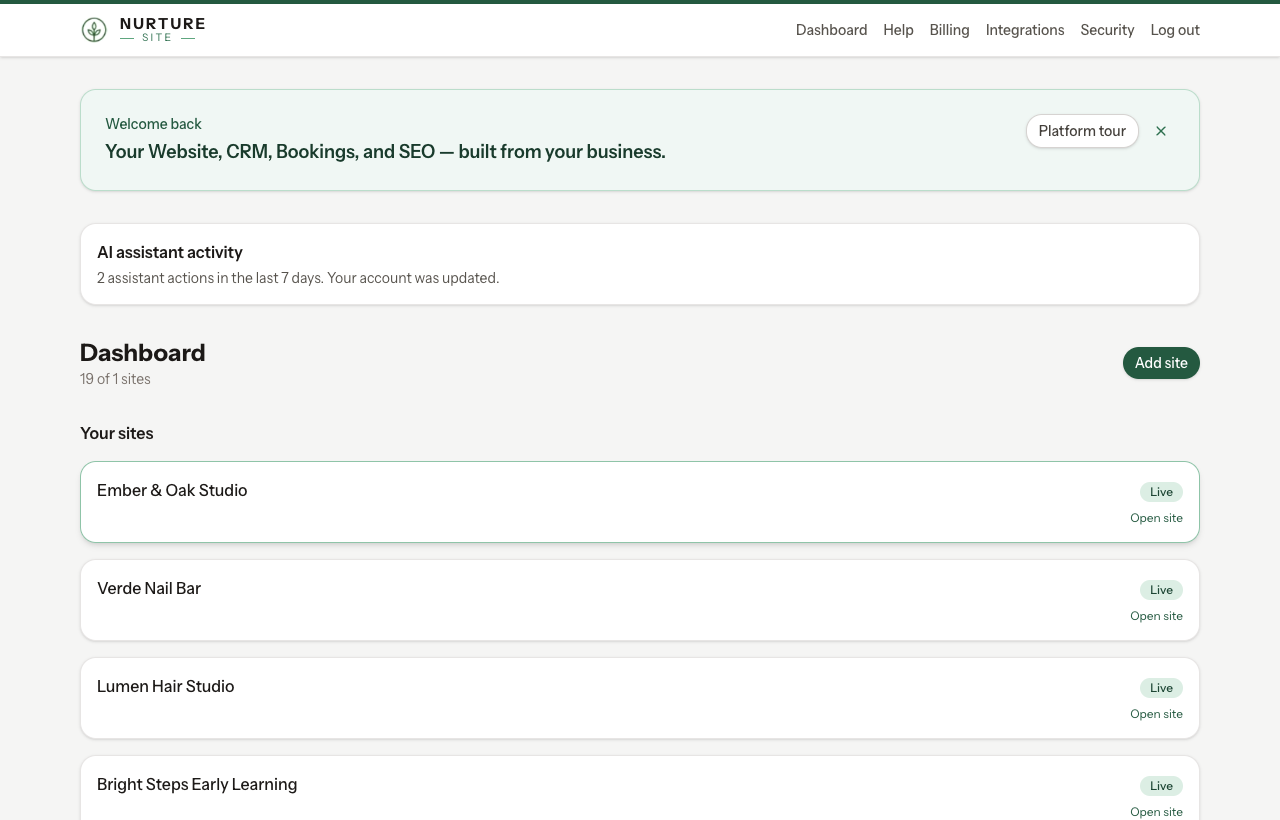
Open your site from the dashboard. The progress bar updates automatically. If a build fails, use Try again on the site page to replan and redeploy.
4. First checklist
When your site is live:
- Preview your site from the NurtureSite site page.
- Edit with AI — describe copy and layout changes in chat with a live preview. See Pages and blocks.
- Open site admin (one-click login) for the block editor, media, and settings. See NurtureSite vs site admin, Site admin basics, and Block types.
- Test a contact form and confirm the record appears in your dashboard leads inbox and site CRM (named Customers, Patients, Households, Students, or Leads — see CRM records).
- Set up follow-up automations (optional) — see CRM automations.
- Turn on booking (optional) — see Online booking setup. Attach waivers or intake if visitors must sign before confirm — see Documents and e-sign.
- Website logins (optional) — let patients, guests, or households sign in on your site for appointments, invoices, and preferences. See Website logins.
- Connect a custom domain when you are ready — see Custom domains.
- Subscribe before your preview ends so the site stays live — see Billing and plans.
- Optional credit — if you are happy with the site, add a discreet “Website by NurtureSite” link in your footer. It is never required; ask support if you want a suggested footer line.
5. Subscribe before trial ends
Your preview lasts for the number of days shown on your dashboard. When it ends, the site enters preview-only mode until you subscribe. Content and leads are saved.
Manage billing from Billing in your NurtureSite account. See Billing and plans.
Related articles
- NurtureSite vs site adminWhen to use your NurtureSite account and when to use your site admin.
- Managing a siteBuild progress, preview, site admin handoff, domains, and checklist.
- Pages and blocksEdit pages, add blocks, and use the AI site editor.
- Block typesWhat each page block looks like and when to use it.
- Site admin basicsLogin, roles, navigation, and opening admin from NurtureSite.
- Online booking setupServices, staff, hours, timezone, payments, and the booking block.
- Forms, waivers, and e-signPrepare waivers and intake, collect signatures on your site, and keep signed PDFs on the CRM record—required at booking, sent after, or sent from the record any time.
- Site CRMNamed records (Customers, Patients, Households, Students, Leads), pipeline, tasks, alerts, invoices, and follow-up automations in site admin.
- CRM recordsName the list Customers, Patients, Households, Students, or Leads; primary contact, matching, consent, and send audience.
- Billing and plansTrial, subscribe, Stripe portal, and cancellation requests.
- Website logins for the people you serveLet patients, guests, households, and other records sign in on your site for appointments, invoices, subscriptions, and preferences.