
Site content & admin
Site admin basics
Login, roles, navigation, and opening admin from NurtureSite.
Site admin is where you edit your live website at yoursite.com/admin.
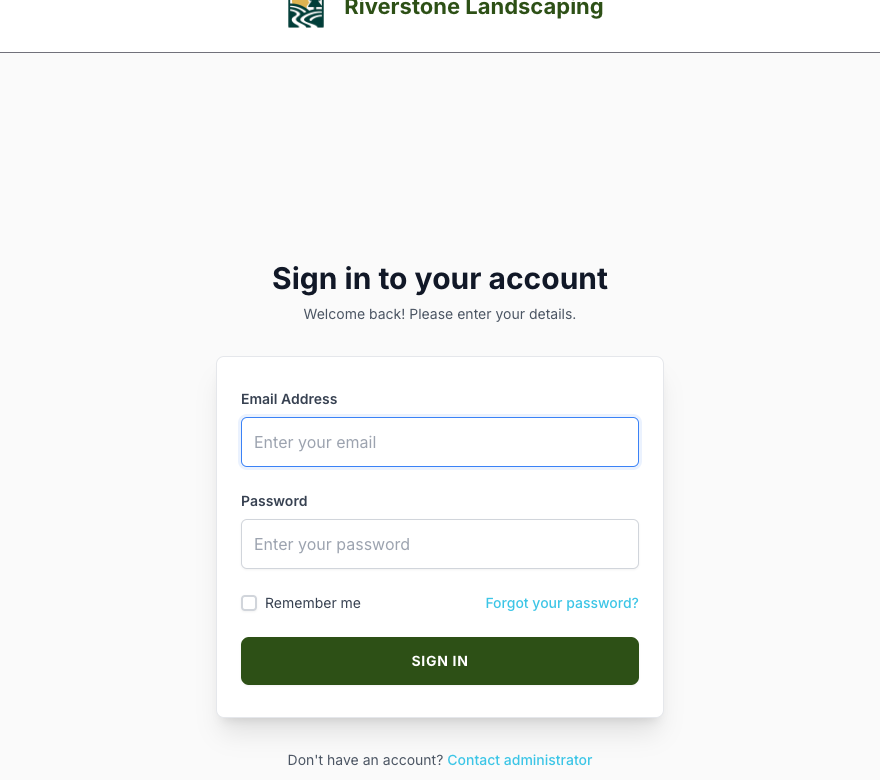
How to log in
- From NurtureSite: Open site admin on your site page (recommended SSO).
- Direct:
yoursite.com/loginwith your user email and password. - Invitations: Accept
/invitation/{token}links from your administrator.
Roles
| Role | Access |
|---|---|
| Administrator | Full admin including users and CRM settings |
| Editor | Pages, blog, media, scheduling, CRM (no user admin) |
The site owner is the administrator whose email matches the business's NurtureSite login. Only the owner can start checkout or open the Stripe billing portal from Billing; other administrators see the plan, status and next bill date read-only, and editors don't see Billing. Other administrators can't deactivate, demote or delete the owner, or change the owner's email or password.
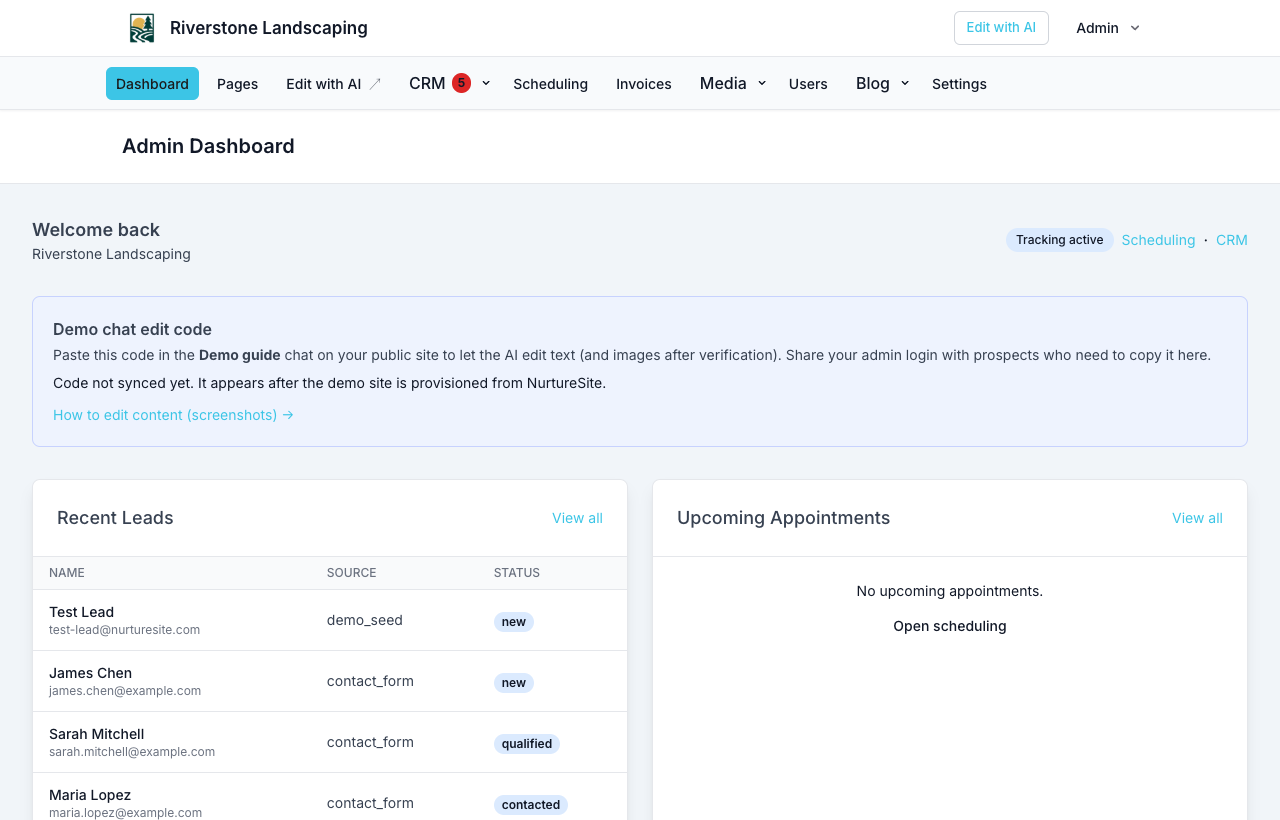
Main navigation
- Dashboard — Quick stats and recent leads
- Pages — Block editor for all site pages
- CRM — Named records (Customers, Patients, Households, Leads, …), tasks, deals (when CRM is enabled), and optional website logins
- Scheduling — Booking setup and appointments
- Invoices — Customer invoices (balances and ad-hoc) and subscription plans
- Media / Media categories
- Blog — Posts, categories, tags
- Users — Team access (admin only)
- Settings — Branding, SEO, analytics toggles
Billing on the site handles your NurtureSite subscription checkout when the site is paywalled. Only the site owner can pay or change billing there (see Roles).
Opening admin from NurtureSite
See NurtureSite vs site admin. NurtureSite handles portfolio tasks; site admin handles content and scheduling.
Related articles
- NurtureSite vs site adminWhen to use your NurtureSite account and when to use your site admin.
- Editing your demo site contentDemo chat verification code, text edits via chat, and manual image updates.
- Pages and blocksEdit pages, add blocks, and use the AI site editor.
- Forms, waivers, and e-signPrepare waivers and intake, collect signatures on your site, and keep signed PDFs on the CRM record—required at booking, sent after, or sent from the record any time.
- Website logins for the people you serveLet patients, guests, households, and other records sign in on your site for appointments, invoices, subscriptions, and preferences.