
Leads & bookings
How to Set Up Forms and Booking on Your Domain
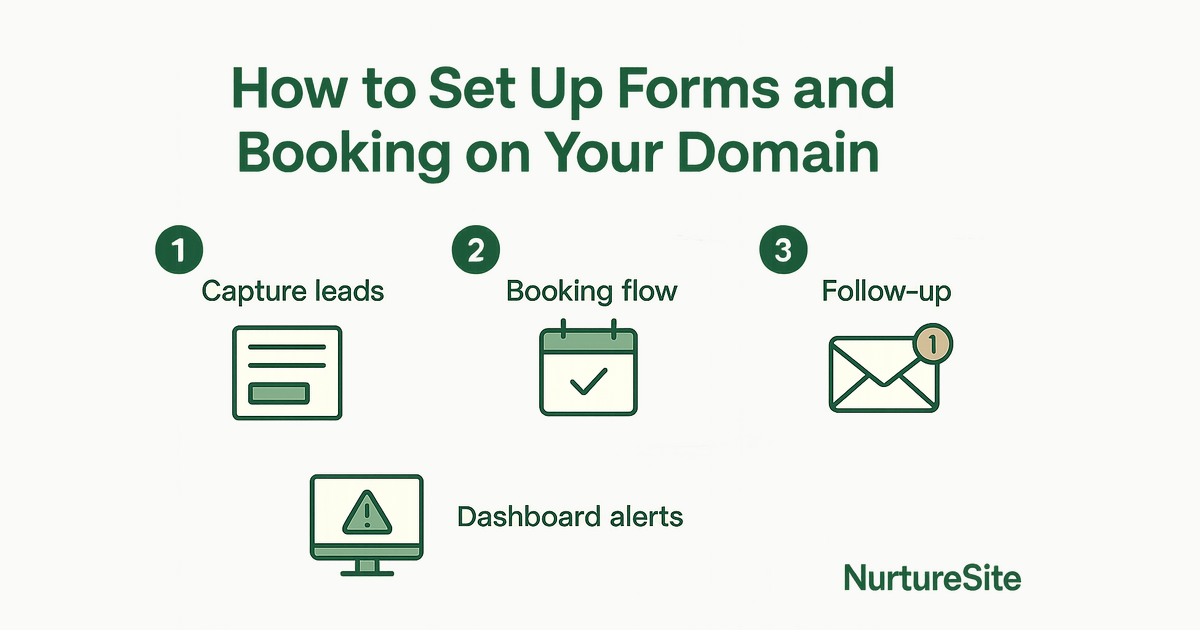
Set up contact forms and online booking directly on your domain — so every lead lands in your NurtureSite dashboard inbox, not a third-party app.
By AJ Herold · August 11, 2026 · 6 min read
How this was written: drafted with AI assistance from NurtureSite's product documentation and Search Console data, then checked against the sources linked above and published under the editorial responsibility of AJ Herold. Spotted an error? Email sales@mg.nurturesite.com.
Understanding the Importance of Forms and Booking on Your Domain
For local service businesses, every missed inquiry is a missed job. A potential customer lands on your site, looks for a way to reach you, and if the process is clunky — a phone number buried at the bottom, a booking link that opens a third-party app on a different domain — many of them leave without converting.
The fix isn't complicated: put your contact forms and booking system directly on your own domain, and route every submission into a single inbox you check daily. This post walks through how to do that, what to look for in a booking setup, and how to manage the leads you capture so more of them turn into paying customers.
Why Forms on Your Own Domain Beat Third-Party Tools
Forms are the simplest lead-capture tool you have. Whether it's a quick contact form, a detailed quote-request form, or a service inquiry form, having them hosted on your domain matters for a few reasons:
- Trust: Visitors stay on your site instead of being redirected to a generic form tool. That continuity builds confidence, especially for higher-ticket services like HVAC installs or landscaping projects.
- Attribution: When a lead comes through your own domain, your analytics can tell you which page, which search term, or which referral source drove that inquiry. Third-party form embeds often break that chain.
- Speed: On-domain forms load with your site — no extra script to fetch, no third-party outage to worry about.
To set up forms effectively:
- Choose your form type — Contact forms work for general inquiries. Quote-request forms work better when you need job details upfront (square footage, service type, preferred date). Appointment forms work when you want to move straight to a booking.
- Keep fields minimal — Name, phone or email, and one or two job-specific fields is usually enough. Every extra field reduces completion rates.
- Route submissions to your dashboard inbox — Make sure every form submission lands somewhere you'll actually see it. In NurtureSite, all form leads flow into your leads inbox automatically, so nothing gets lost in email threads.
Setting Up Online Booking on Your Domain
Booking is a step beyond a contact form — the customer picks a time, you confirm availability, and the appointment is locked in without a phone call. For service businesses with predictable job types (cleanings, consultations, tune-ups, haircuts), on-domain booking can meaningfully reduce the back-and-forth that eats up your day.
Here's what a solid booking setup looks like:
- Configure your availability — Set the days and time windows you're open for bookings. Block off buffer time between appointments if your jobs run long. Keep this updated so you don't end up double-booked.
- Define your service types — Give each bookable service a clear name, duration, and price (or price range). Customers should know exactly what they're booking before they confirm.
- Collect a deposit at booking — For higher-value jobs, requiring a deposit when the customer books dramatically reduces no-shows. NurtureSite supports deposit collection through Stripe Connect — see the booking deposit setup guide for how to configure it. You can also use the booking deposit calculator to figure out the right deposit amount for your service type.
- Embed booking on your site pages — The booking widget should live on your service pages and your contact page, not just a standalone booking URL. Customers who land on your "Lawn Care" page should be able to book lawn care right there.
For a full walkthrough of the booking configuration, see online booking setup.
Managing Leads in Your Dashboard Inbox
Capturing leads is only half the job. The other half is following up fast enough that the customer hasn't already called your competitor.
In your NurtureSite site admin, all form submissions and booking requests land in your leads inbox. From there you can:
- See every lead in one place — Form inquiries, booking requests, and follow-up tasks are all in the same view. No switching between email, a booking app, and a spreadsheet.
- Score and prioritize — NurtureSite's built-in lead pipeline lets you tag leads by service type or urgency, so you know which ones to call first.
- Set follow-up reminders — If a lead goes cold, a task reminder keeps it from falling through the cracks.
- Trigger follow-up automations — You can set up simple automations (confirmation emails, follow-up sequences) directly in site admin without a separate marketing tool. See site CRM and automations for details.
The goal is a response time under an hour for new inquiries. Studies consistently show that the first business to respond wins the job at a much higher rate than those who follow up the next day.
Best Practices for Forms and Booking
A few things that make a real difference in conversion:
- Mobile-first design — Most local service searches happen on phones. Your forms and booking flow need to work cleanly on a small screen. Test on your own phone regularly.
- Confirmation messages — After a form submission or booking, show a clear confirmation on the page and send an email receipt. Customers who don't get confirmation often submit again or call to check.
- Match forms to the page — A roofing estimate page should have a roofing estimate form, not a generic "contact us" form. Specificity increases completion rates.
- Test regularly — Submit your own forms every month or two. Broken forms are silent lead killers — you won't know they're broken unless you check.
What This Means for Your Website
If you're running a local service business, the combination of on-domain forms, on-domain booking, and a unified leads inbox is the foundation of a site that actually generates revenue — not just traffic.
The alternative — a contact email on your homepage, a Calendly link that opens in a new tab, and leads scattered across your inbox — works until it doesn't. As your volume grows, the cracks show fast.
NurtureSite builds service business websites with forms, booking, and a leads inbox included from day one. You're not stitching together plugins or paying for three separate tools. See how it fits together on the online booking for small business guide, or read website lead capture best practices for more on turning visitors into inquiries.
Ready to set up forms and booking on your own domain? See pricing or register now to get started.
Build Pages That Match How Customers Search
Visitors decide quickly whether you serve their job and area. Spell out your services, service area, and what happens after they contact you — so the page earns the click from search or Maps.
Service businesses win when each important job has a clear page: emergency vs. install, residential vs. commercial, or each major service line. Pair those pages with honest service-area copy, proof, and a simple next step. Avoid stuffing every topic onto the homepage. A focused page is easier to rank, easier to trust, and easier to convert into a call or booking.
Clarify your offer on every key page
Visitors decide quickly whether you serve their job and area. Spell out services, service area, and what happens after they contact you so the page earns the click from search or Maps.
Related reading
- How to Effectively Add a Click-to-Call Button on Your Service Business Website — Learn how to effectively implement a click-to-call button on your service business website to boost lead generation and improve customer eng…
- Maximizing Leads with NurtureSite for HVAC, Plumbing, and Landscaping Businesses — Discover how NurtureSite can streamline lead capture for trades with quote forms and on-domain booking.

AJ Herold, Founder
Alexander Herold is the founder of NurtureSite, where he builds website, CRM, and booking software for local service businesses. He writes about what actually turns search traffic into booked work.
More about AJ HeroldPrefer NurtureSite in Google Search
Add nurturesite.com as a preferred source so our articles can appear with a preferred badge in Google Top Stories and AI Mode.
Add as preferred sourceRelated articles
- How to Effectively Add a Click-to-Call Button on Your Service Business WebsiteLearn how to effectively implement a click-to-call button on your service business website to boost lead generation and improve customer engagement.
- How to Collect Deposit When Customer Books Online: A Comprehensive GuideLearn how to effectively collect deposits online using fixed or percentage options, and streamline your process with Stripe Connect.
- Website lead capture: 8 practices that actually fill your inboxForms, CTAs, mobile layout, and attribution—how local businesses turn traffic into qualified inquiries.
- What is NurtureSite? A Comprehensive Overview for Local Service BusinessesDiscover how NurtureSite simplifies web development for local service businesses with an all-in-one solution for just $79/month.